
How does it work?
Register with Us
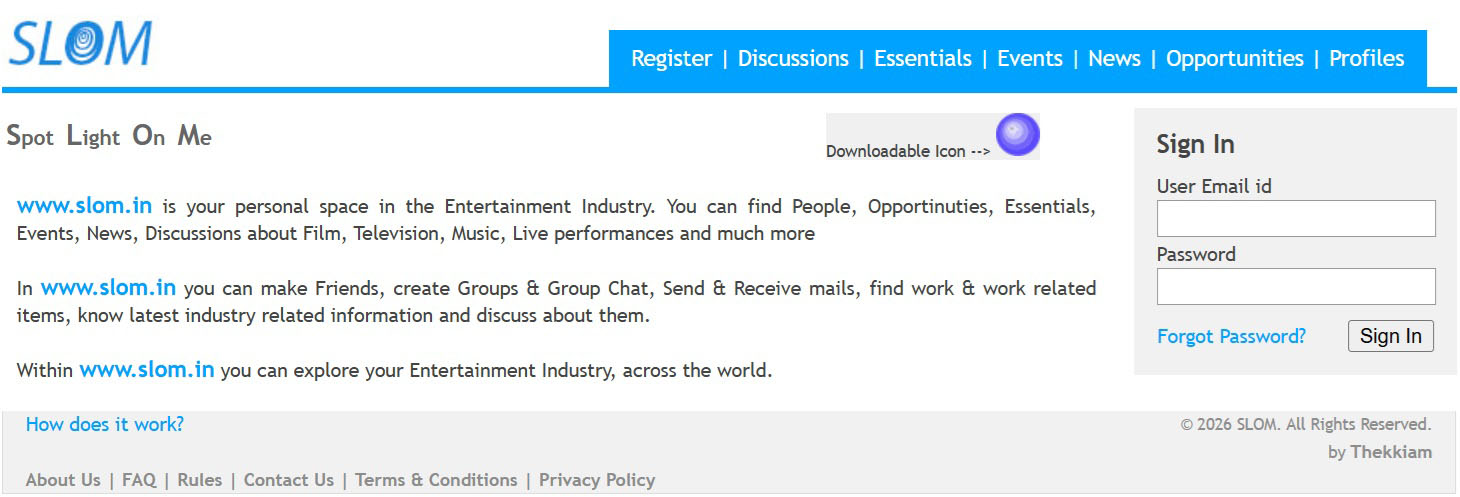
1. Click on the REGISTER option n top of the page in www.slom.in
2. Fill in all required details in the PROFILE REGISTRATION FORM and submit
3. Once successfully submitted, an email shall be sent to your registered email with a CONFIRMATION LINK, your USERNAME and PASSWORD
4. After you click confirm the CONFIRMATION LINK you can use the USERNAME and PASSWORD to login into www.slom.in
5. You can click on the 'Downloadable Icon' to download the icon on to your mobile device for easy access to www.slom.in
Home Page <-- Click here to see HOME PAGE information
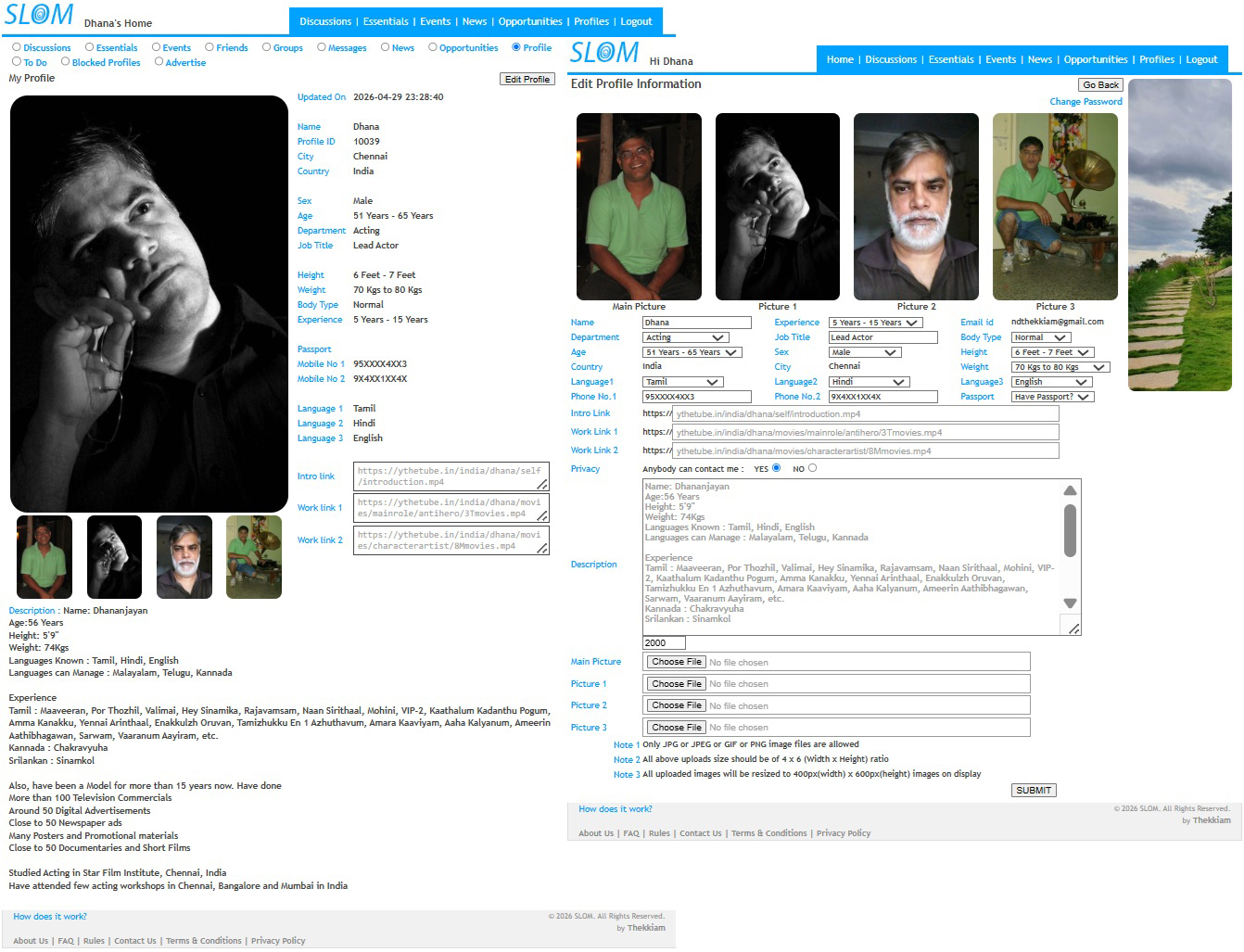
1. Successful Login with your Username & Password will open your HOME PAGE showing your PROFILE details that you Registered with us with, under PROFILE option
2. You can click on EDIT button to modify your profile details on regular intervals to keep an updated PROFILE information for seekers
3. you can also change your NAME & PASSWORD by clicking CHANGE PASSWORD ink and giving your new details
4. You can toggle between the options(Radio Buttons) showing within your HOME PAGE to see your respective information pertaining to your chosen option
------------------------------------------
Discussions <-- Click here to see DISCUSSIONS information
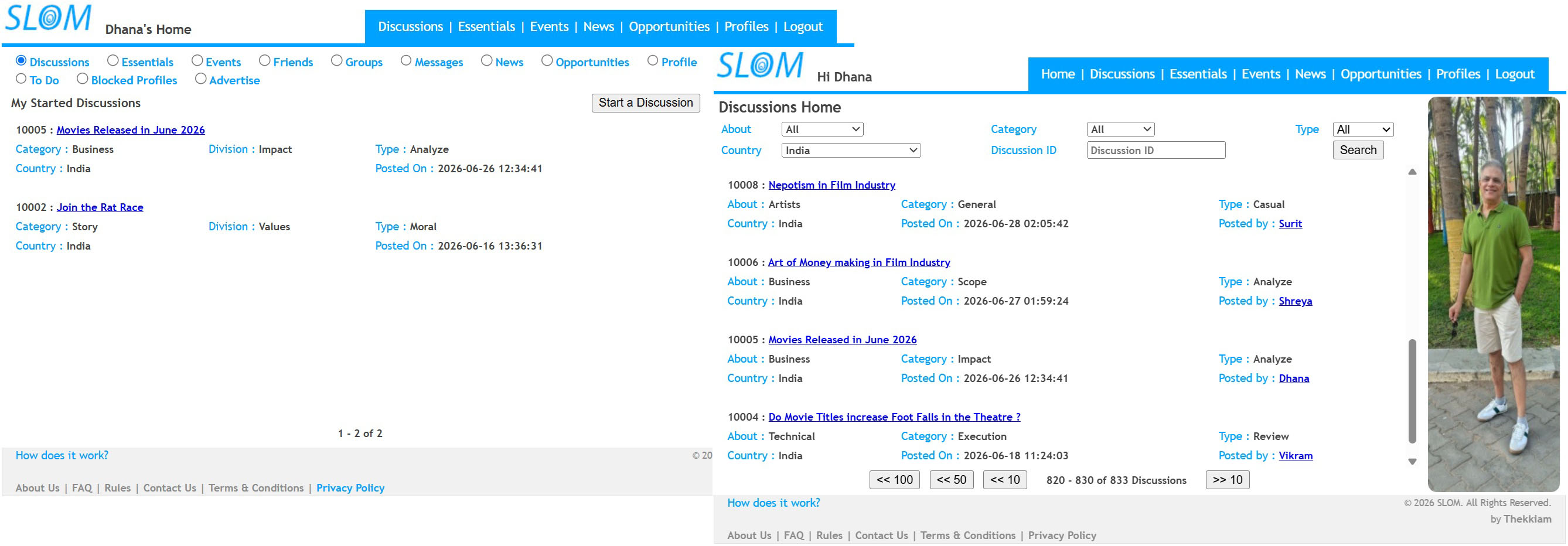
1. You can see the DISCUSSION/s started by you in your HOME PAGE in DISCUSSIONS option under MY STARTED DISCUSSIONS
2. On Clicking the DISCUSSION link at the top of the page you can see a list of all DISCUSSIONs started by the registered users. You can fine tune the list of DISCUSSIONS you want to see by entering for your required SEARCH parameters and pressing the SEARCH button
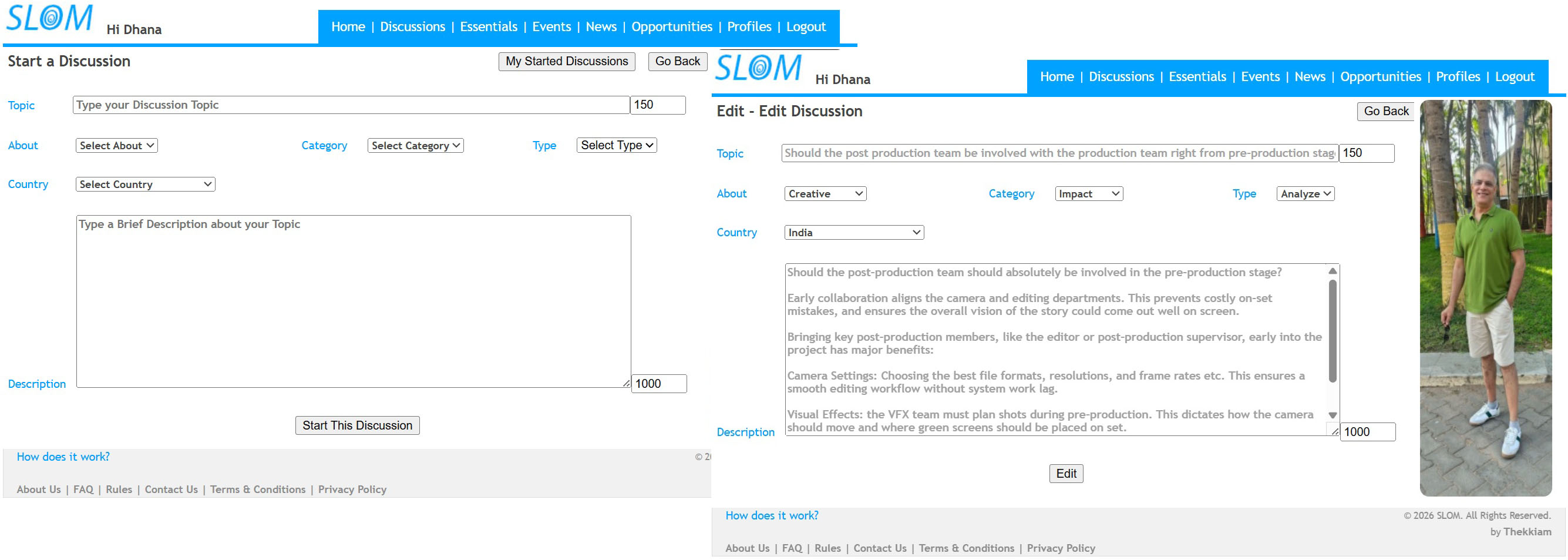
1. To Start a new DISCUSSION (only one per day), click on the START A DISCUSSION button on the DISCUSSIONS Option on your HOMEPAGE. Fill in all the details on the page and press the 'Submit' button
2. You can see your succesfully submitted DISCUSSION in your HOME PAGE in DISCUSSIONS option under MY STARTED DISCUSSIONS, and also under the main DISCUSSIONS menu (under matching search parameters)
3. On clicking your created DISCUSSION link, in your DISCUSSION DETAILS page, Click on the EDIT button to edit your Discussion Contents before resubmitting
4. Only the one who started the DISCUSSION can EDIT or DELETE the respective DISCUSSION detail
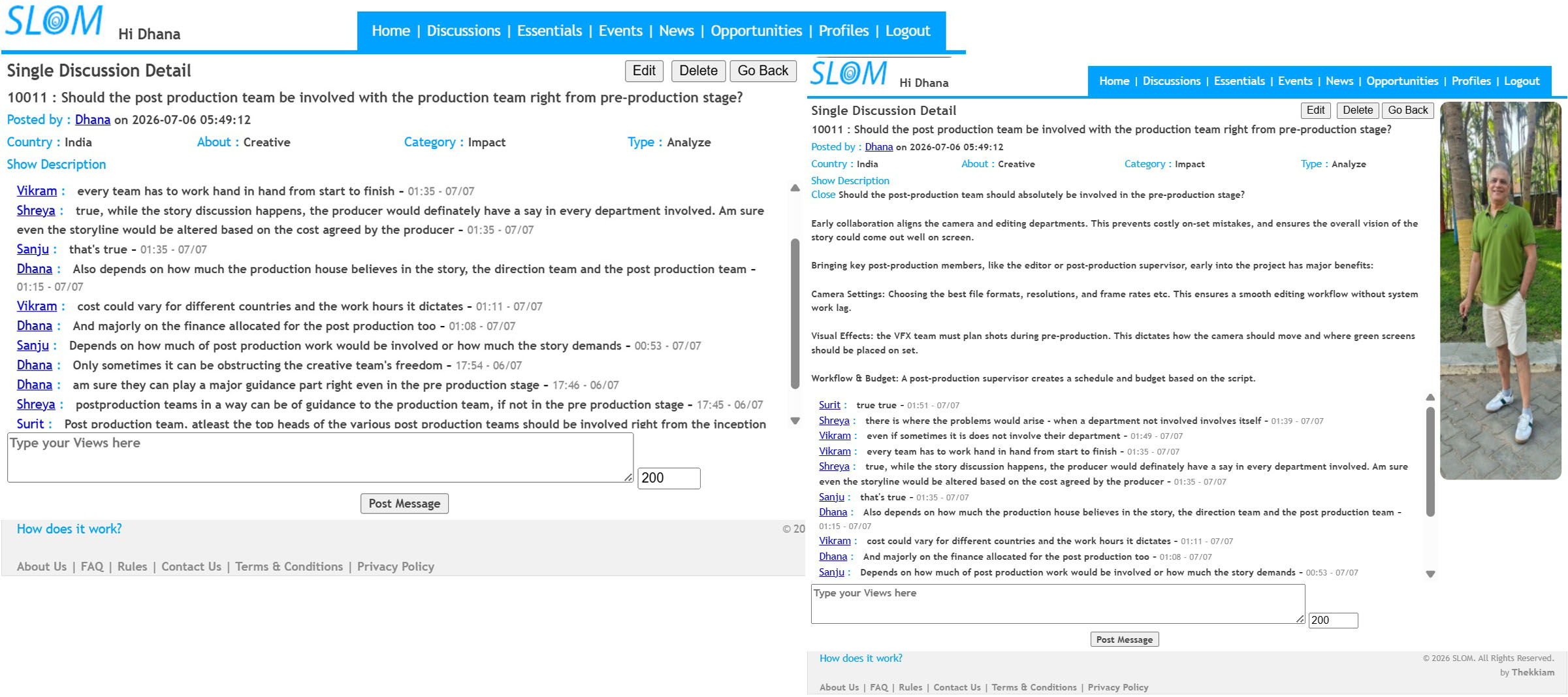
1. On clicking the Topic of the DISCUSSION (showing as a link), one can see the respective DISCUSSION Details and the DISCUSSION CHAT details
2. Anyone interested can take part in any DISCUSSION CHAT
3. In any manner if the DISCUSSION content affects the sentiment of any other Registered Member of www.slom.in , they can click on the REPORT ABUSE button on top of the respective SINGLE DISCUSSION DETAIL page and submit their reason for content dislike
4. Only the latest Chat messages ( maximum of 50) shall be displayed in the DISCUSSION Text Messages
------------------------------------------
Essentials <-- Click here to see ESSENTIALS information
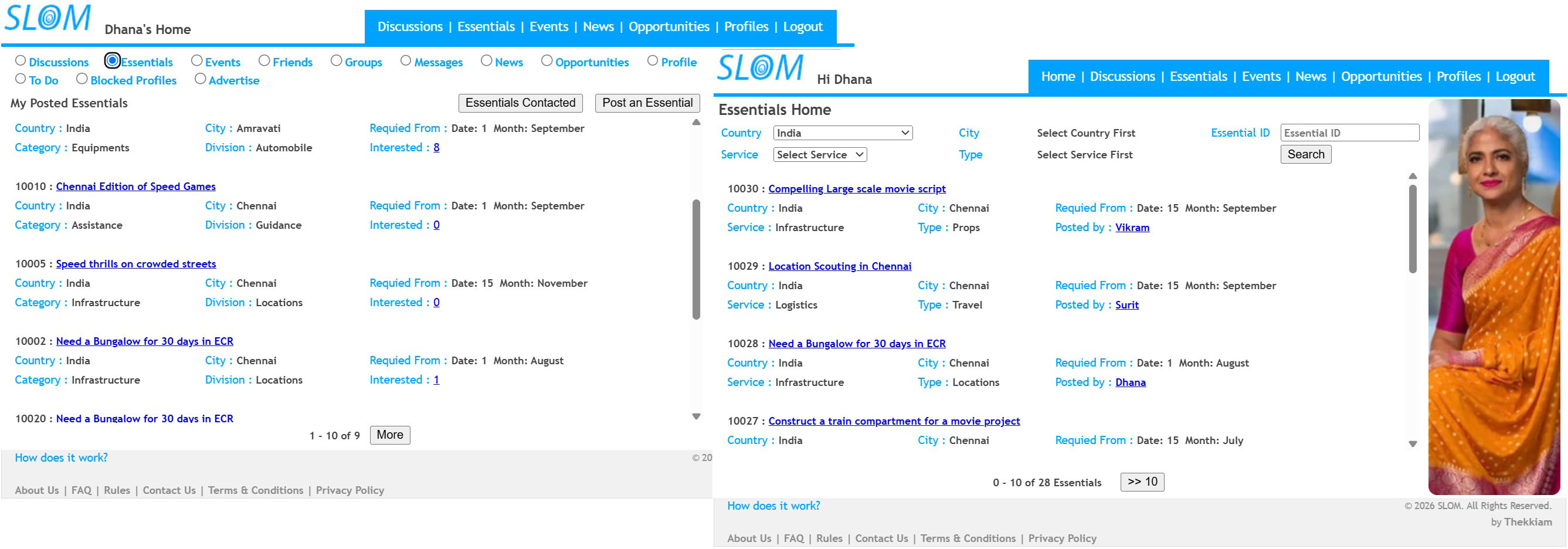
1. You can see your posted ESSENTIALs in your HOME PAGE in ESSENTIAL option under MY POSTED ESSENTIALS
2. On Clicking the ESSENTIAL link at the top of the page you can see a list of all ESSENTIALs posted by the registered users. You can fine tune the list of ESSENTIALs you want to see by entering for your required SEARCH parameters and pressing the SEARCH button
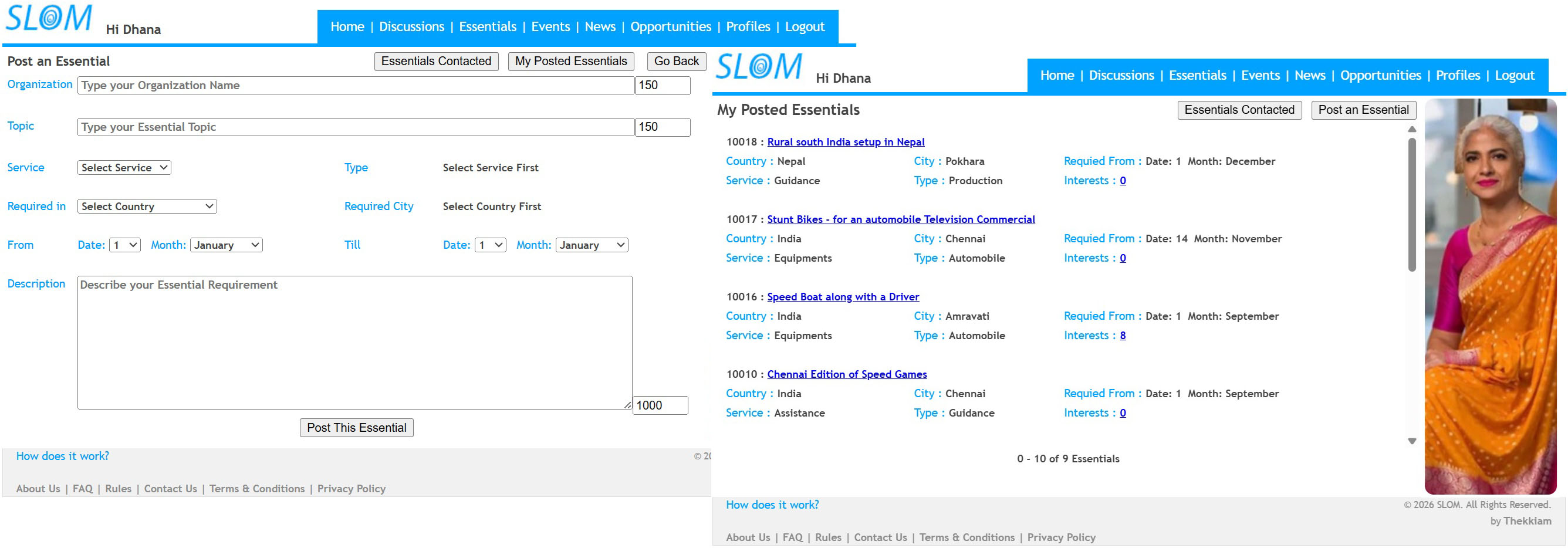
1. To Post a new ESSENTIAL requirement(only one per day), click on the POST AN ESSENTIAL button on the ESSENTIALS Option on your HOMEPAGE. Fill in all the details on the page and press the 'Submit' button
2. You can see your succesfully submitted ESSENTIAL in your HOME PAGE in ESSENTIALS option under MY POSTED ESSENTIALS, and also under the main ESSENTIALS menu (under matching search parameters)
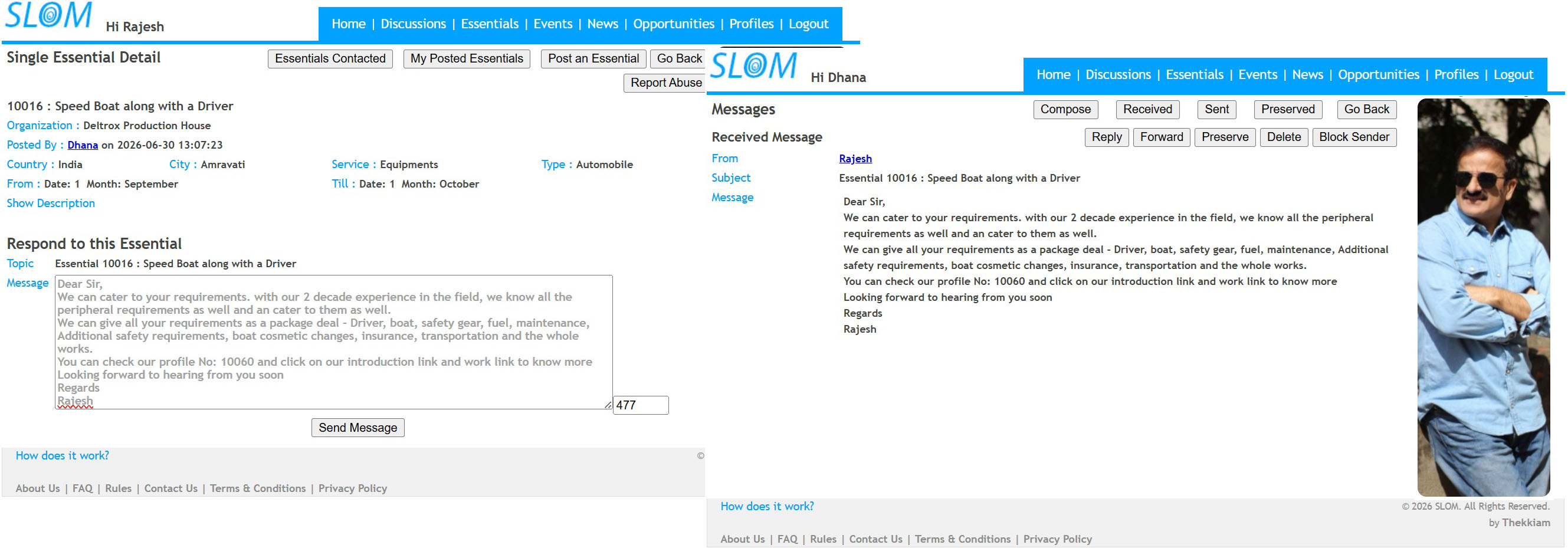
1. On clicking the Topic of the ESSENTIAL (showing as a link), one can see the respective ESSENTIAL Details and a space to respond to the ESSENTIAL
2. Response to ESSENTIALS can be seen under SENT MESSAGES in MESSAGES option. The ESSENTIAL Responded to can also be seen under ESSENTIALS CONTACTED under ESSENTIALS option in your HOME PAGE
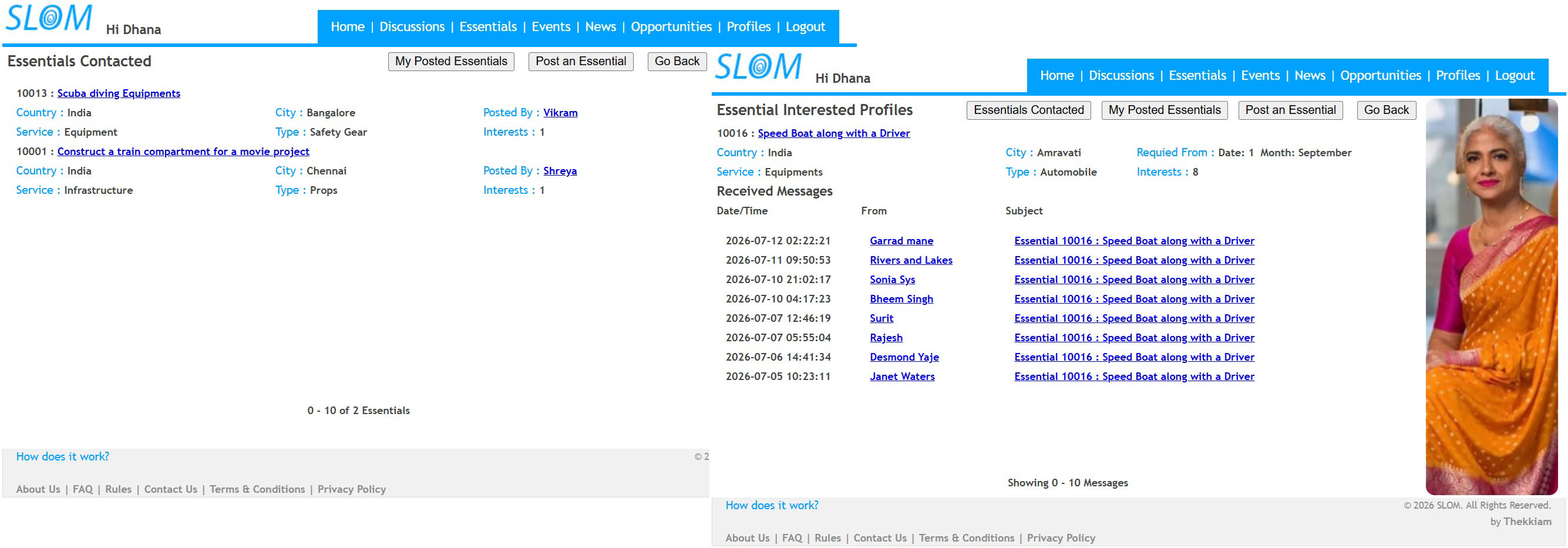
1. For the Creator of the ESSENTIAL, reponses to ESSENTIALS can be seen as INTERESTED number (as a link) along respective ESSENTIAL detail under MY POSTED ESSENTIAL which onClick would show the respective Essentials' responses as RECEIVED MESSAGES
2. Only the one who started the ESSENTIAL can EDIT or DELETE the respective ESSENTIAL detail
3. In any manner if the ESSENTIAL content affects the sentiment of any other Registered Member of www.slom.in , they can click on the REPORT ABUSE button on top of the respective SINGLE ESSENTIAL DETAIL page and submit their reason for content dislike
------------------------------------------
Events <-- Click here to see EVENTS information
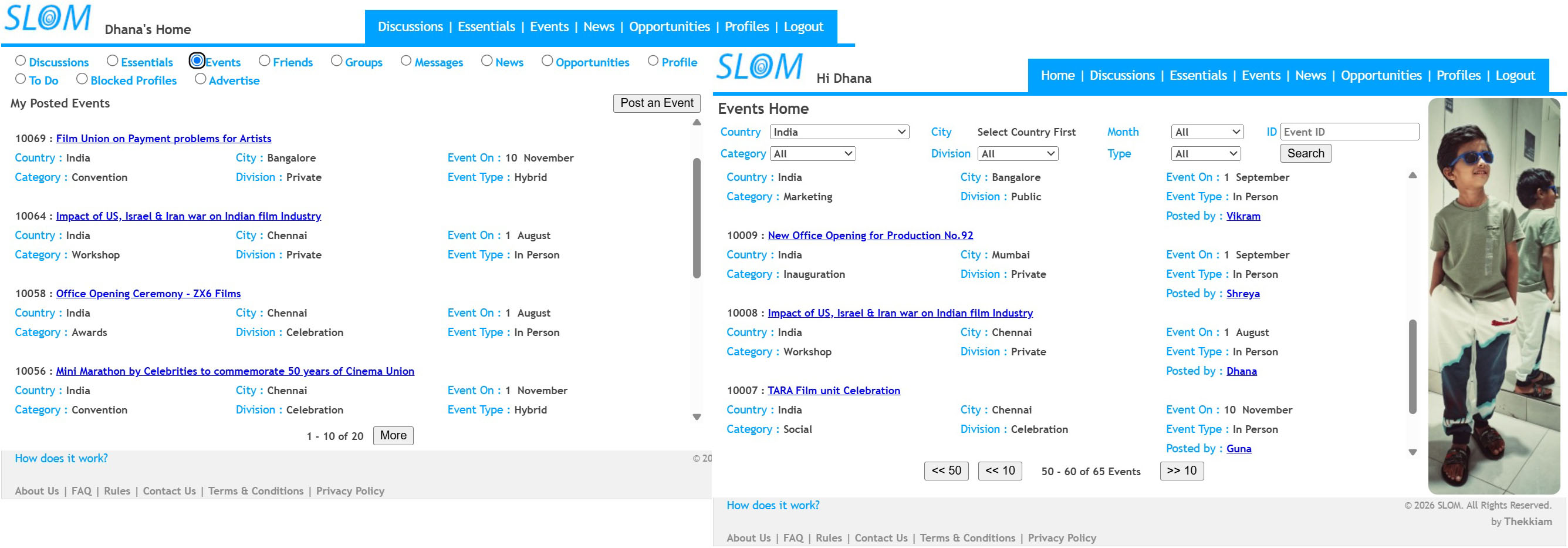
1. You can see your posted EVENTs in your HOME PAGE in EVENT option under MY POSTED EVENTS
2. On Clicking the EVENT link at the top of the page you can see a list of all EVENTs posted by the registered users. You can fine tune the list of EVENTs you want to see by entering for your required SEARCH parameters and pressing the SEARCH button
3. On clicking the Topic of the EVENT (showing as a link), one can see the respective EVENT Details
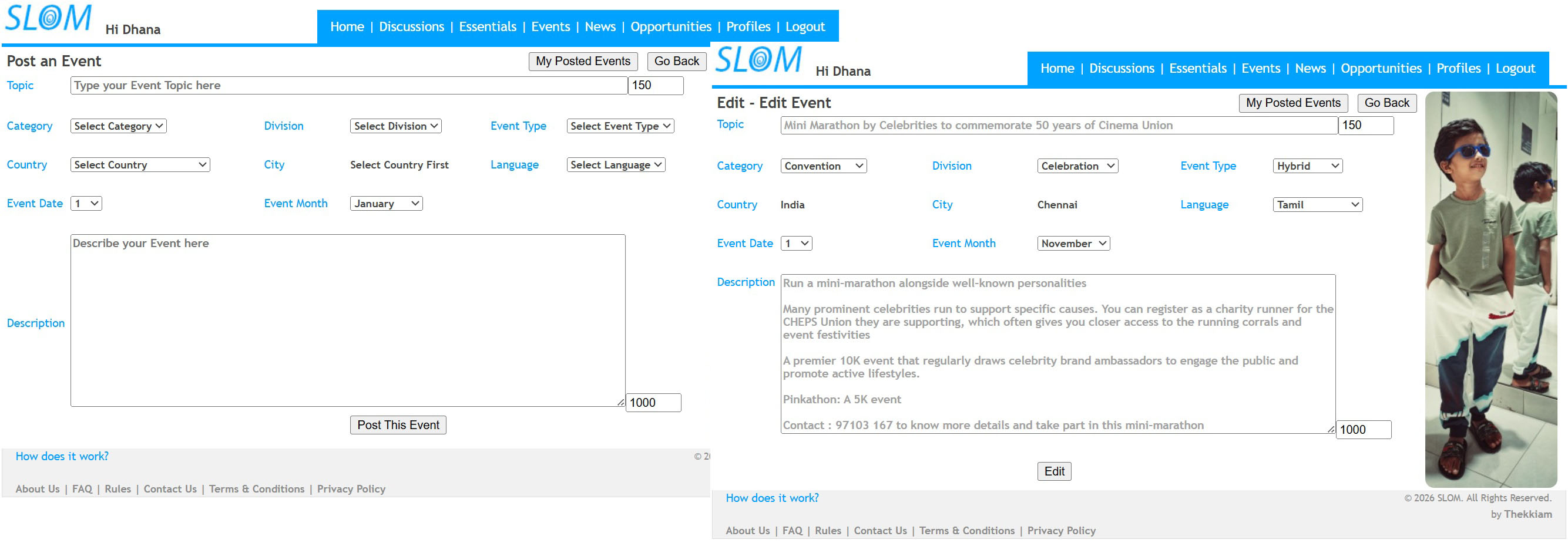
2. To Post a new EVENT (only one per day), click on the POST AN EVENT button on the EVENTS Option on your HOMEPAGE. Fill in all the details on the page and press the 'Submit' button
6. In any manner if the EVENT content affects the sentiment of any other Registered Member of www.slom.in , they can click on the REPORT ABUSE button on top of the respective SINGLE EVENT DETAIL page and submit their reason for content dislike
------------------------------------------
Friends <-- Click here to see FRIENDS information
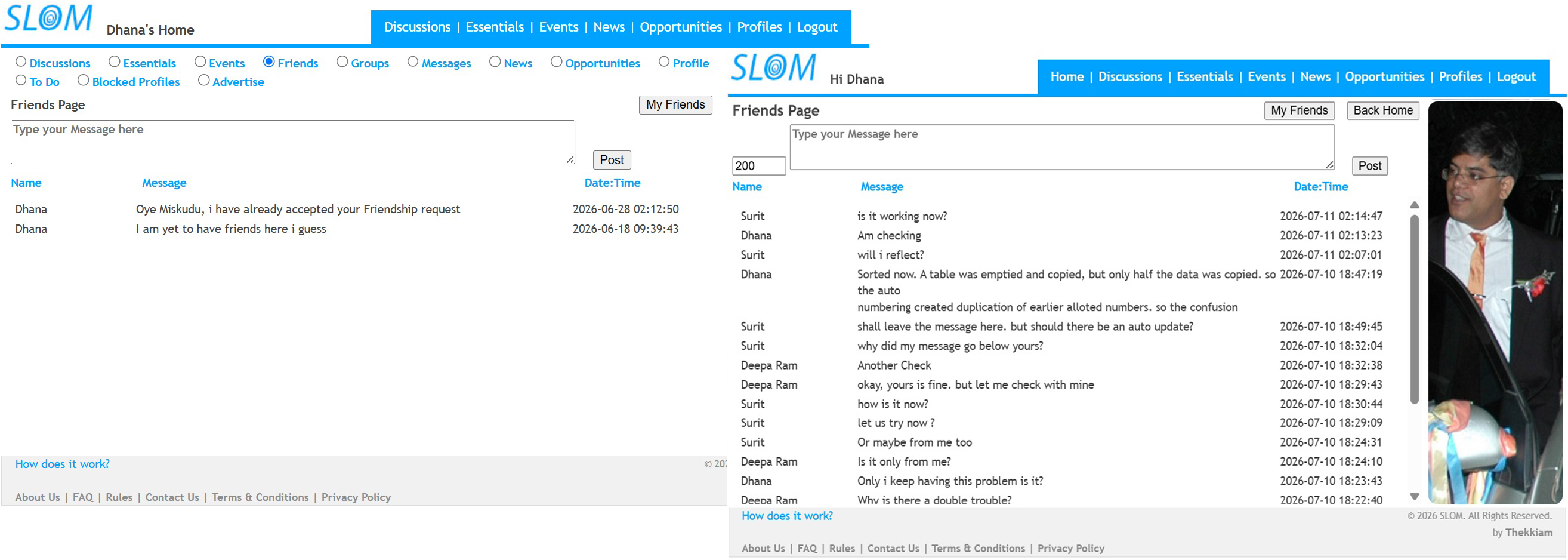
1. Under FRIENDS option in your HOME PAGE, you can see the FRIEND'S PAGE with texts posted by your FRIENDS
2. Your chat texts can only be seen by your friends
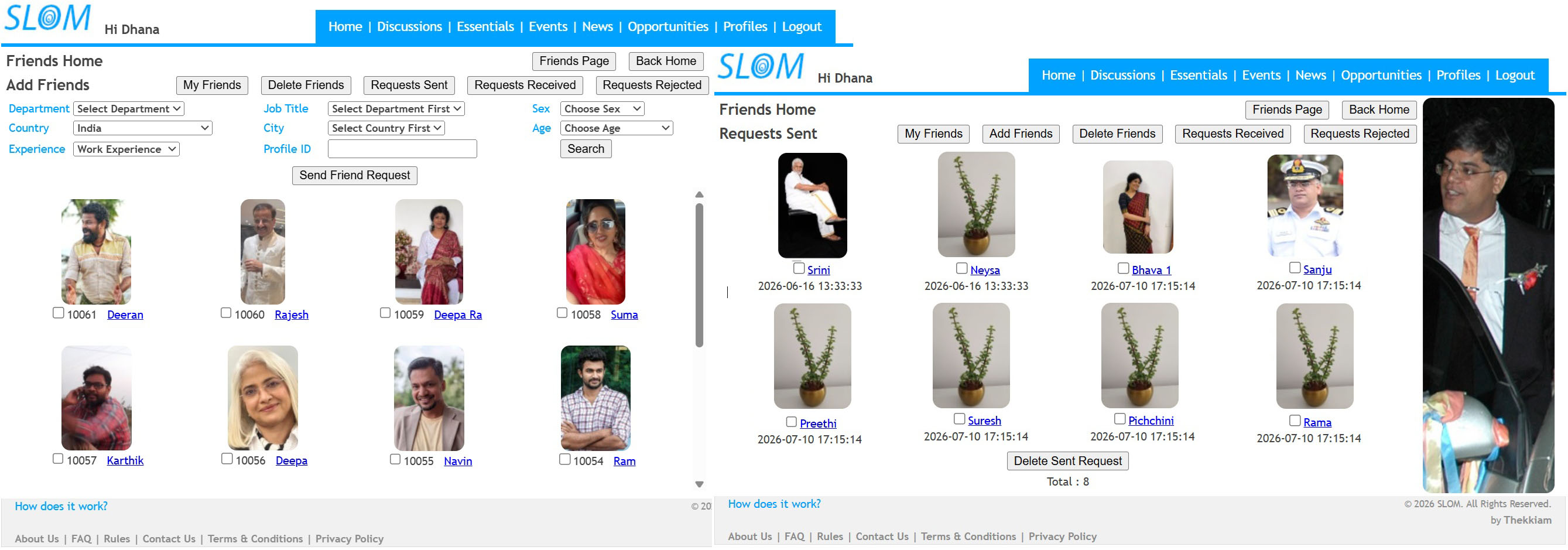
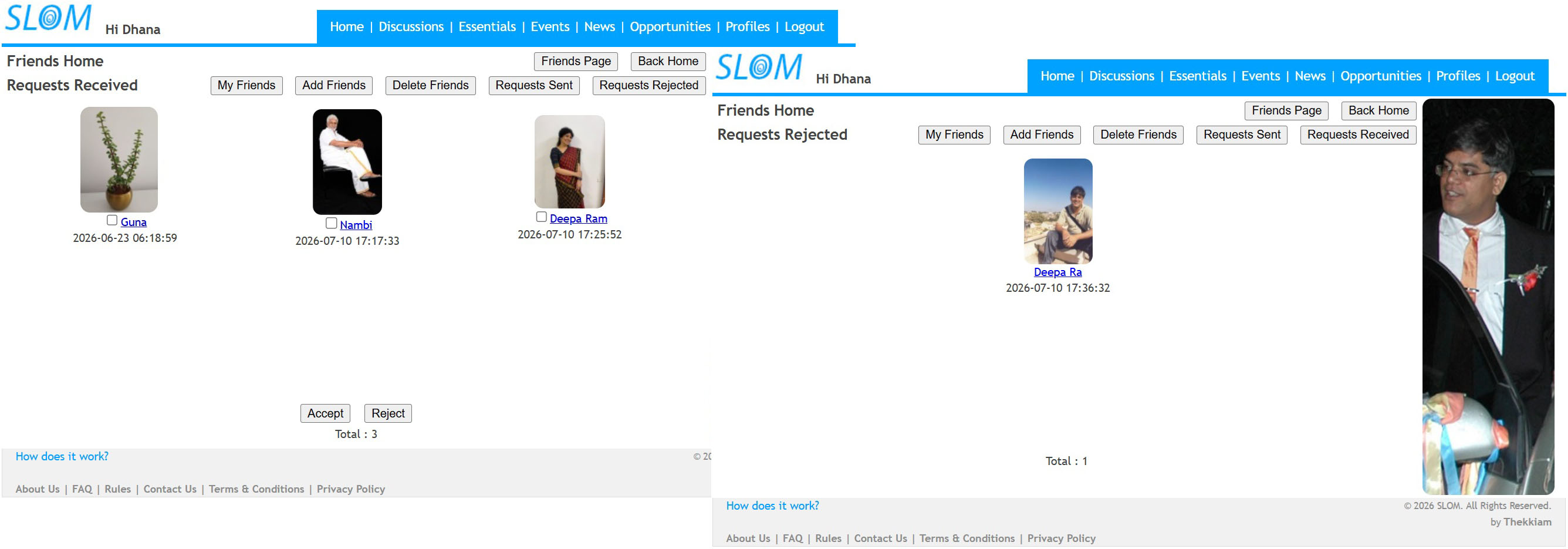
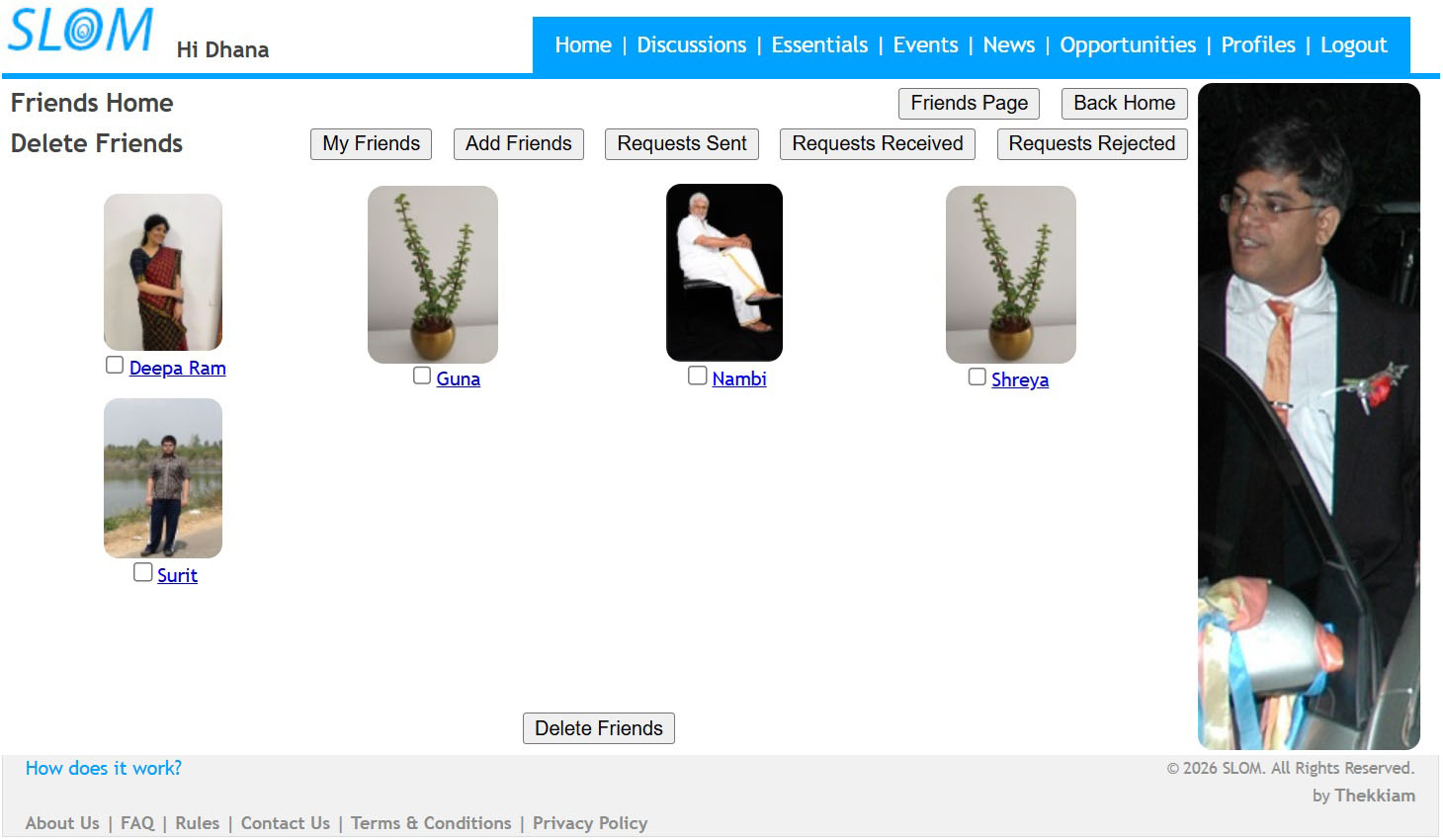
1. OnClicking the MY FRIENDS button on the above page will lead you to FRIENDS HOME where you can see all your FRIENDS and links leading to their PROFILEs.
2. THere are also buttons to ADD new FRIENDS, DELETE FRIENDS from your Existing Friend's list, REQUESTS SENT by you to make friends with others, REQUESTS RECEIVED from others to make you their Friend and the REQUESTS REJECTED by you of other's Friend Requests
3. One can only have a maximum of 50 friends at any given point in time
------------------------------------------
Groups <-- Click here to see GROUPS information
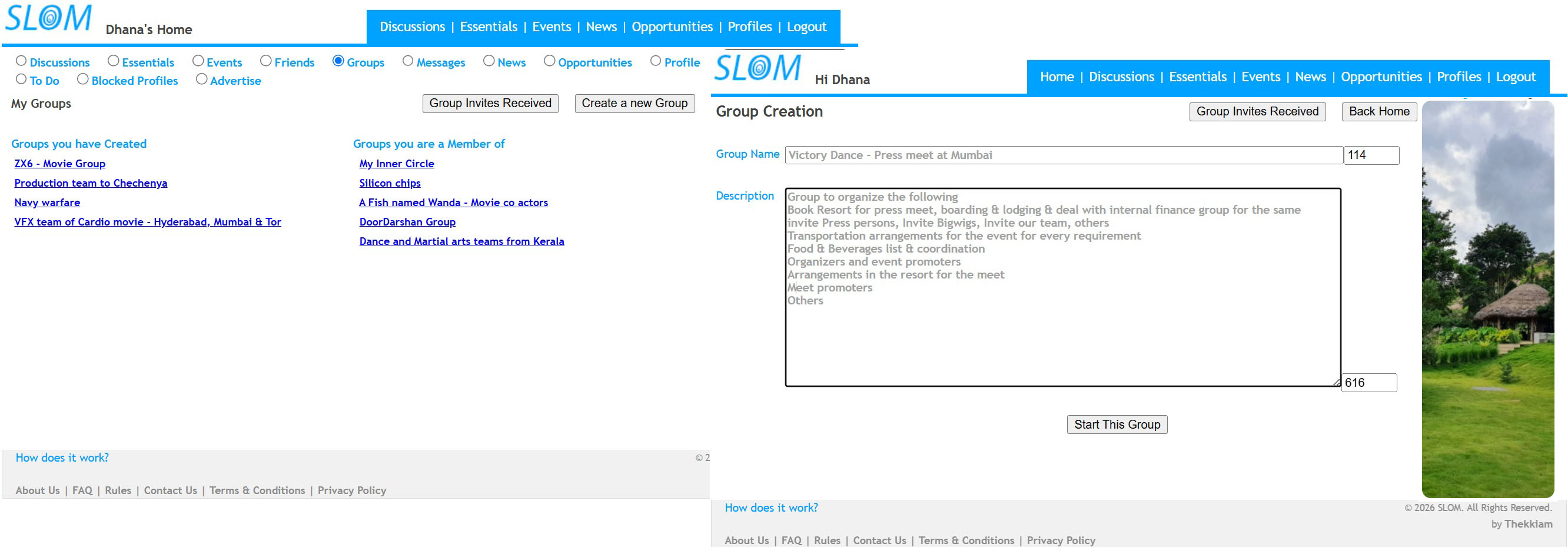
1. Under GROUPS option in your HOME PAGE, you can see the list of Topics (as Links) of the GROUPS that you have created and that you are a Member of
2. To Start a new GROUP, click on the CREATE A NEW GROUP button on the GROUP Option on your HOMEPAGE. Fill in all the details on the page and press the 'Submit' button
3. You can maximum have 5 GROUPs that you have created any any given point in time. The same is the case with the GROUPs that you are a part of
4. Each GROUP can have only 25 members in them (including the GROUP creator)
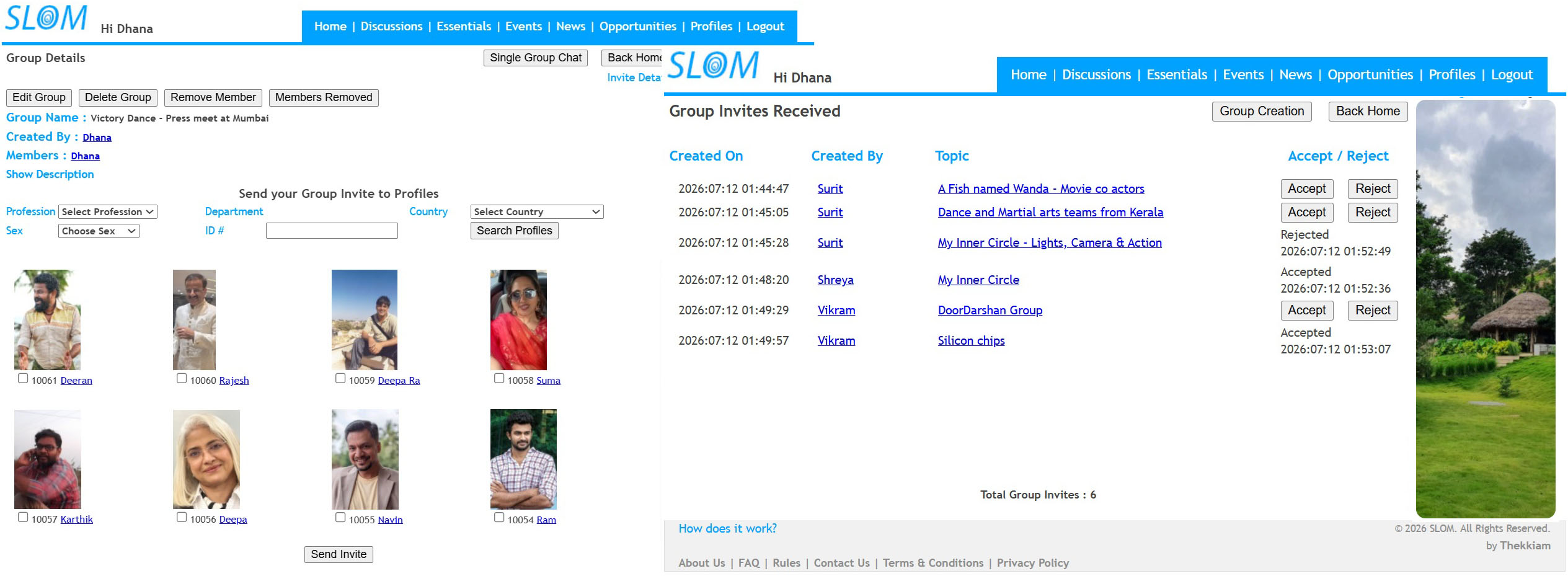
1. If it is a GROUP YOU HAVE CREATED then the GROUP DETAILS button leads you to GROUP DETAILS Page where you can EDIT GROUP, DELETE GROUP, REMOVE MEMBER or see REMOVED MEMBERS of the Group. Also search for Profiles and send GROUP INVITES from here, the details of which can be viewed on Clicking the INVITE DETAILS link at the top. But if it is a GROUP YOU ARE A MEMBER OF then clicking REMOVE ME FROM THIS GROUP button will remove you from the respective GROUP
2. INVITES RECEIVED option shall show the Invites from Groups that you have received from. You will have the option of either ACCEPTing or DECLINEing the same
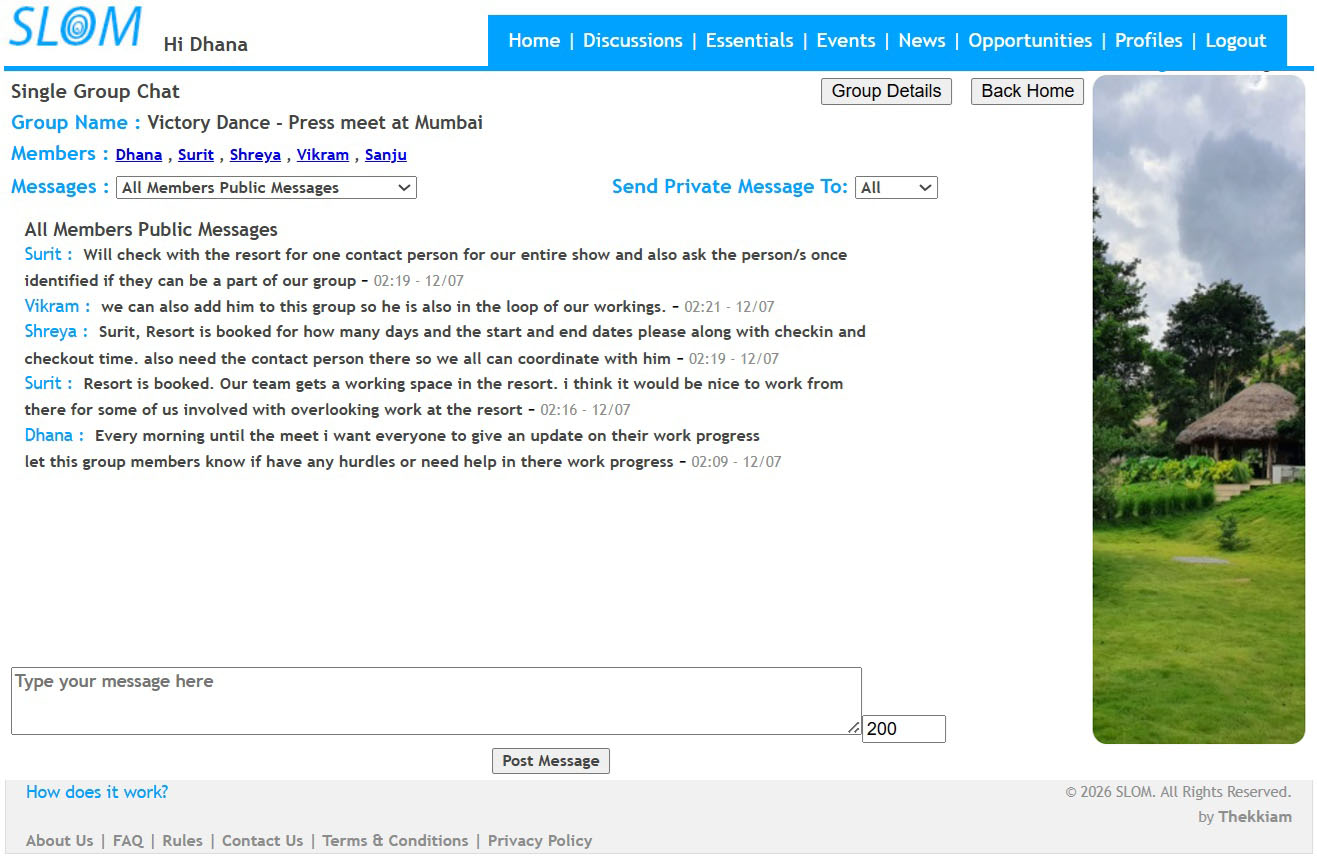
1. Click on these GROUP topic links to lead to their respective GROUP CHAT page where you can chat with the GROUP Members. You can SEND PRIVATE MESSAGE or MESSAGE TO ALL or VIEW Chat Messages as per how you choose from these list down Menu
------------------------------------------
Messages <-- Click here to see MESSAGES information
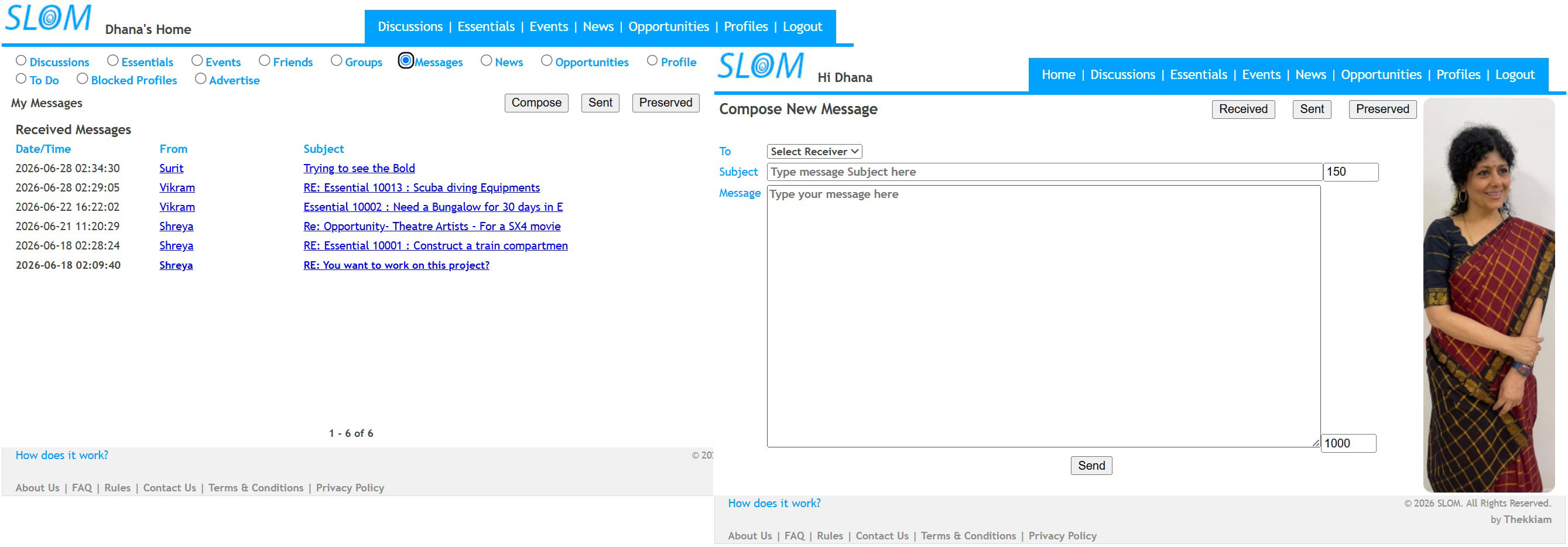
1. You can see list of latest 10 RECEIVED MESSAGES as links, in your HOME PAGE, under MESSAGES option. Click on a Subject Links would lead to the details of that respective MESSAGE
2. Click COMPOSE A NEW MESSAGE to send a new MESSAGE to your Friend
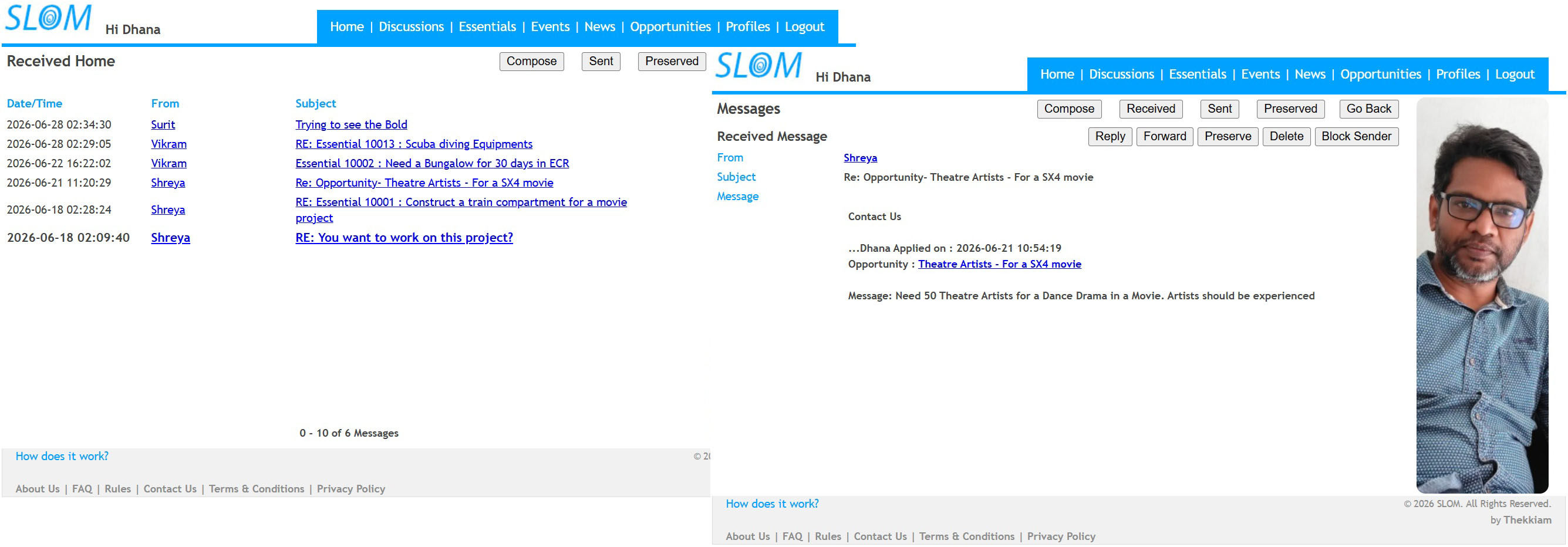
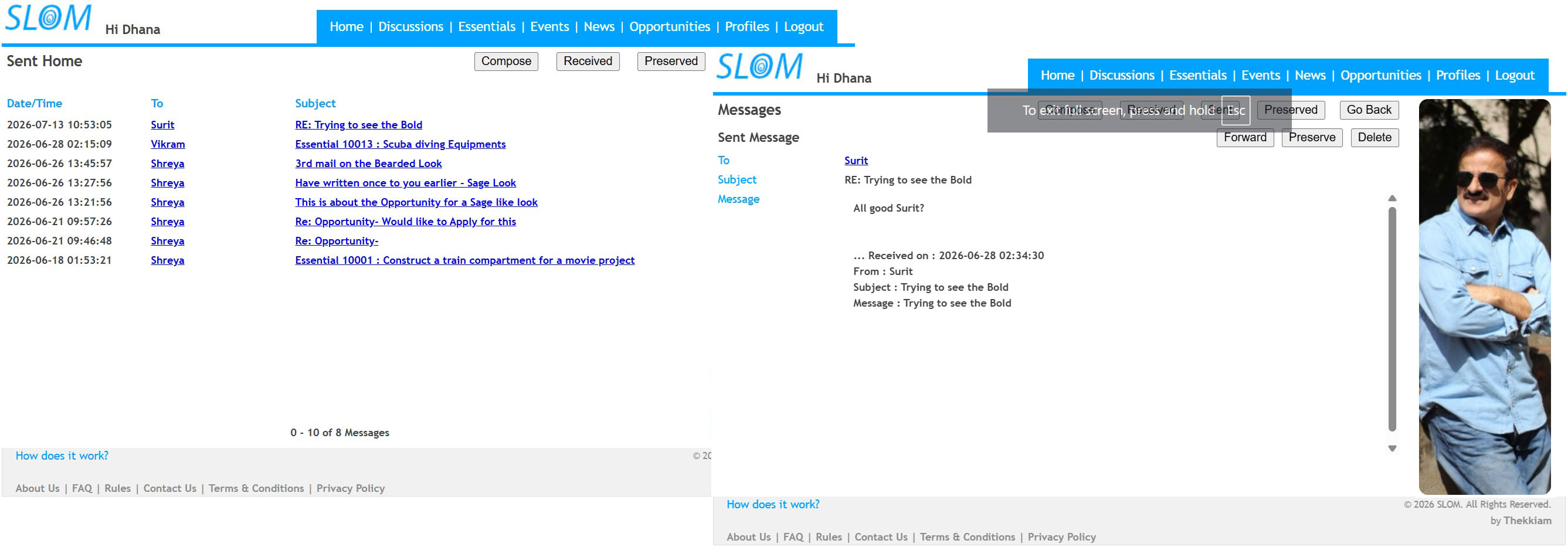
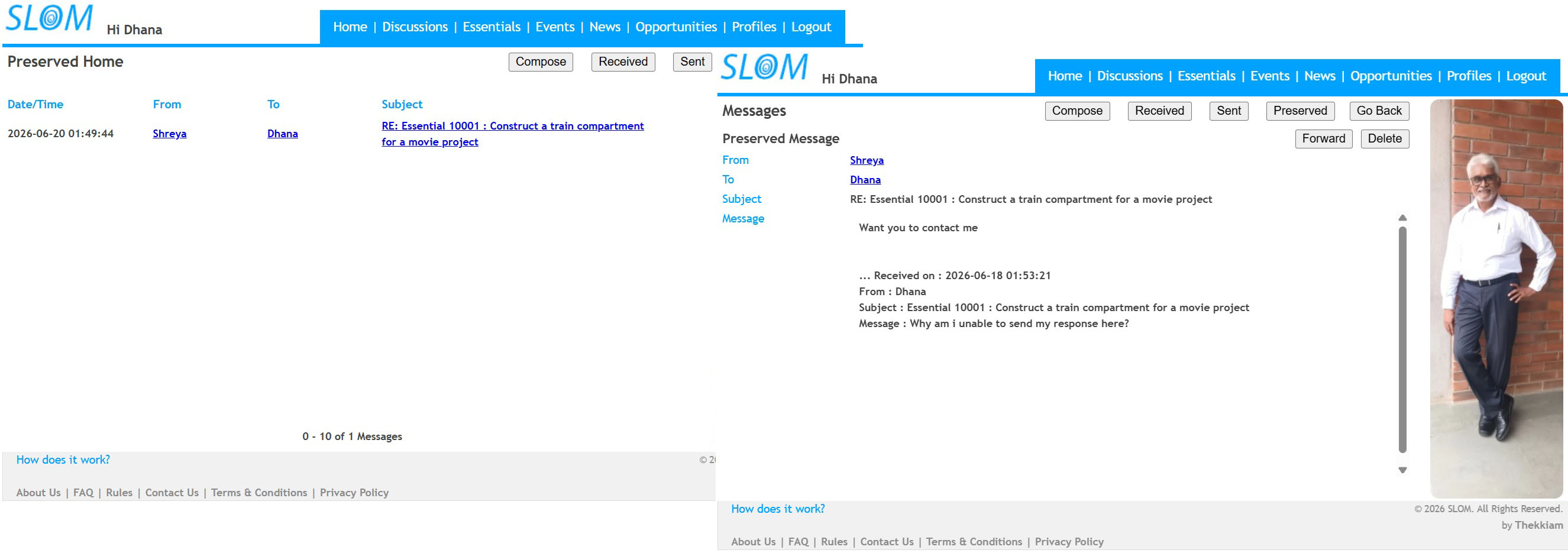
1.You can also click on RECEIVED, SENT and PRESERVED to view the list of respective Subjects as links
2. OnClick on the Subject link opens a page with the respective message detail particulars where you have Buttons to REPLY FORWARD PRESERVE DELETE and BLOCK SENDER
3. SENT or RECEIVED MESSAGES list would show only the once that had been SENT or RECEIVED within 100 days time period from the day they have been SENT or RECEIVED.
4. One can store a maximum of 50 PRESERVED MESSAGES at any given point in time
------------------------------------------
News <-- Click here to see NEWS information
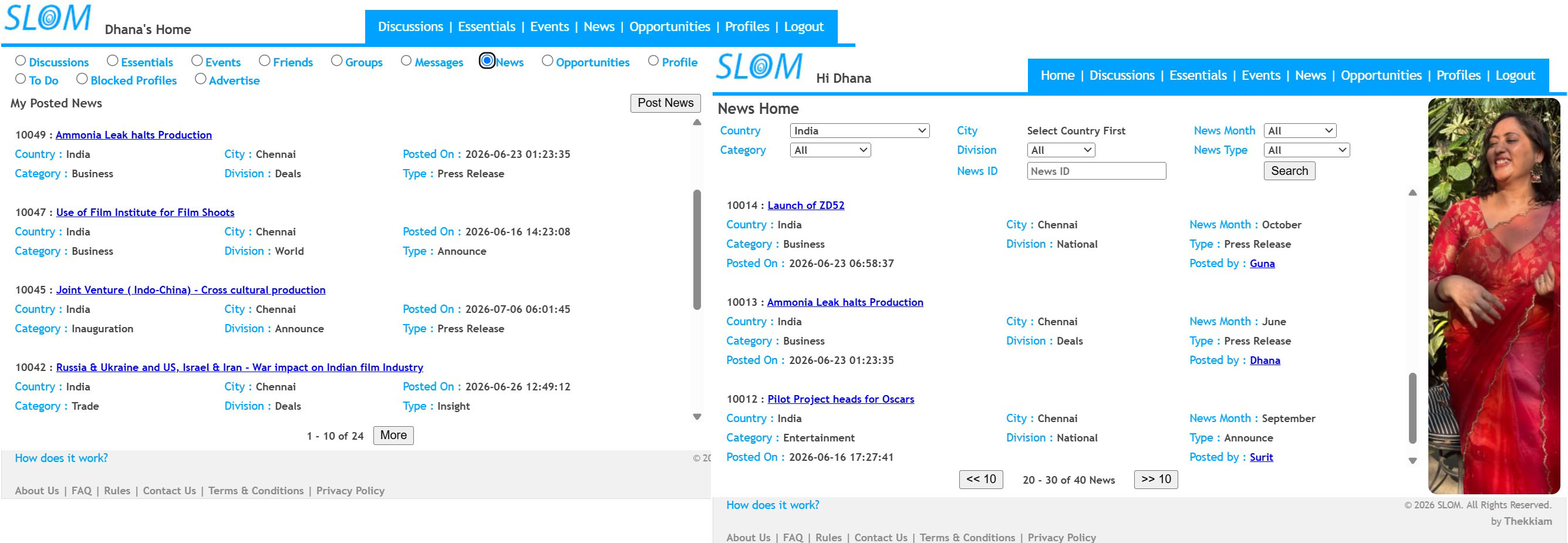
1. You can see the NEWS Posted by you in your HOME PAGE in NEWS option under MY POSTED NEWS
2. To Post a new NEWS (only one per day), click on the POST NEWS button on the NEWS Option on your HOMEPAGE. Fill in all the details on the page and press the 'Submit' button
3. You can see your succesfully submitted NEWS in your HOME PAGE in NEWS option under MY POSTED NEWS, and also under the main NEWS menu (under matching search parameters)
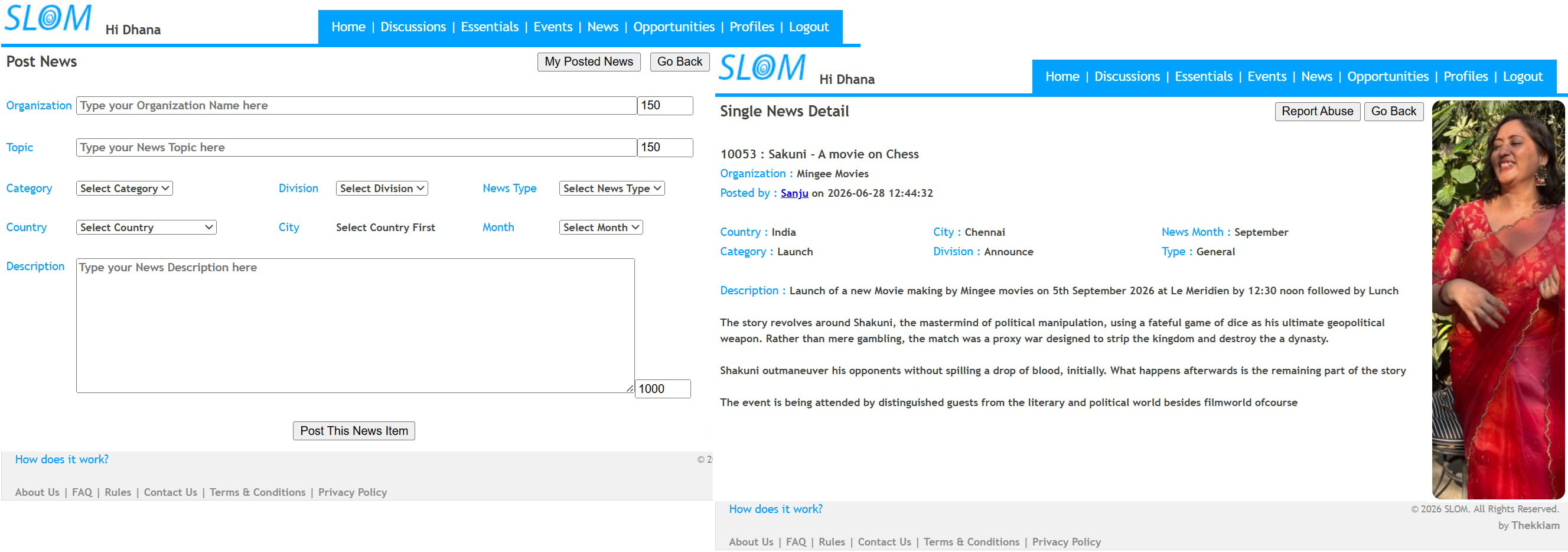
1. On clicking the Topic of the NEWS (showing as a link), one can see the respective NEWS Details
2. Only the one who posted the NEWS can EDIT or DELETE the respective NEWS detail
3. In any manner if the NEWS content affects the sentiment of any other Registered Member of www.slom.in , they can click on the REPORT ABUSE button on top of the respective SINGLE NEWS DETAIL page and submit their reason for content dislike
------------------------------------------
Opportunity <-- Click here to see OPPORTUNITY information
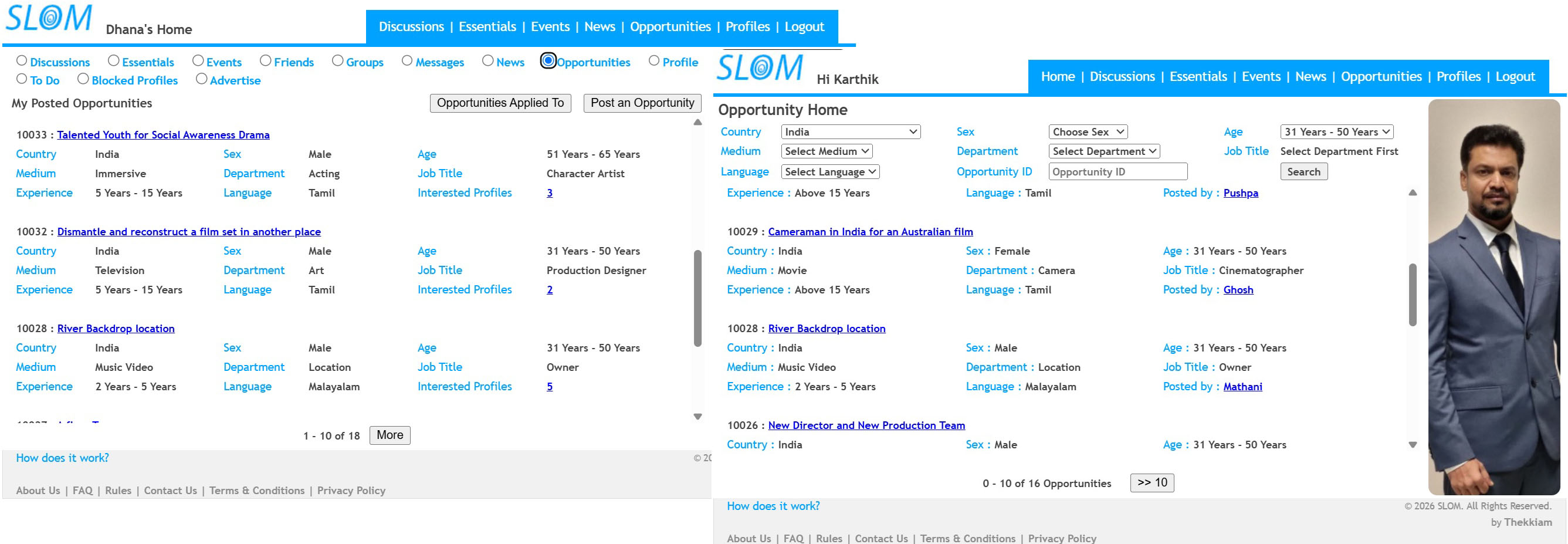
1. You can see the OPPORTUNITY/s posted by you in your HOME PAGE in OPPORTUNITIES option under MY POSTED OPPORTUNITIES
2. To Post a new OPPORTUNITY requirement(only three per day), click on the POST AN OPPORTUNITY button on the OPPORTUNITIES Option on your HOMEPAGE. Fill in all the details on the page and press the 'Submit' button
3. You can see your succesfully submitted OPPORTUNITY in your HOME PAGE in OPPORTUNITIES option under MY POSTED OPPORTUNITIES, and also under the main OPPORTUNITIES menu (under matching search parameters)
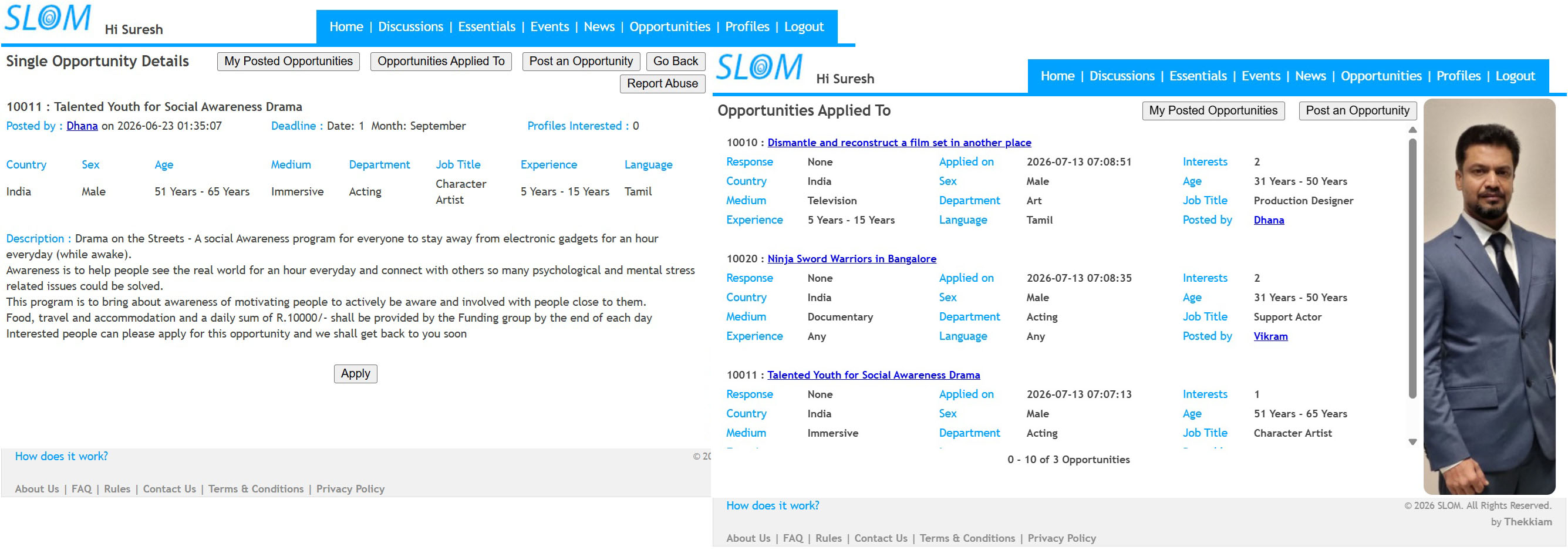
1. On clicking the Topic of the OPPORTUNITY (showing as a link), one can see the respective OPPORTUNITY Details and if the OPPORTUNITY criteria matches your PROFILE, a APPLY button would be visible. Click on the APPLY button to APPLY for that OPPORTUNITY
2. The list of OPPORTUNITIES one has APPLIED to can be seen on clicking the OPPORTUNITIES APPLIED TO button. For the OPPORTUNITY Creator Respondants can also be seen as INTERESTED PROFILES number (as a link) along respective OPPORTUNITY detail under MY POSTED OPPORTUNITY
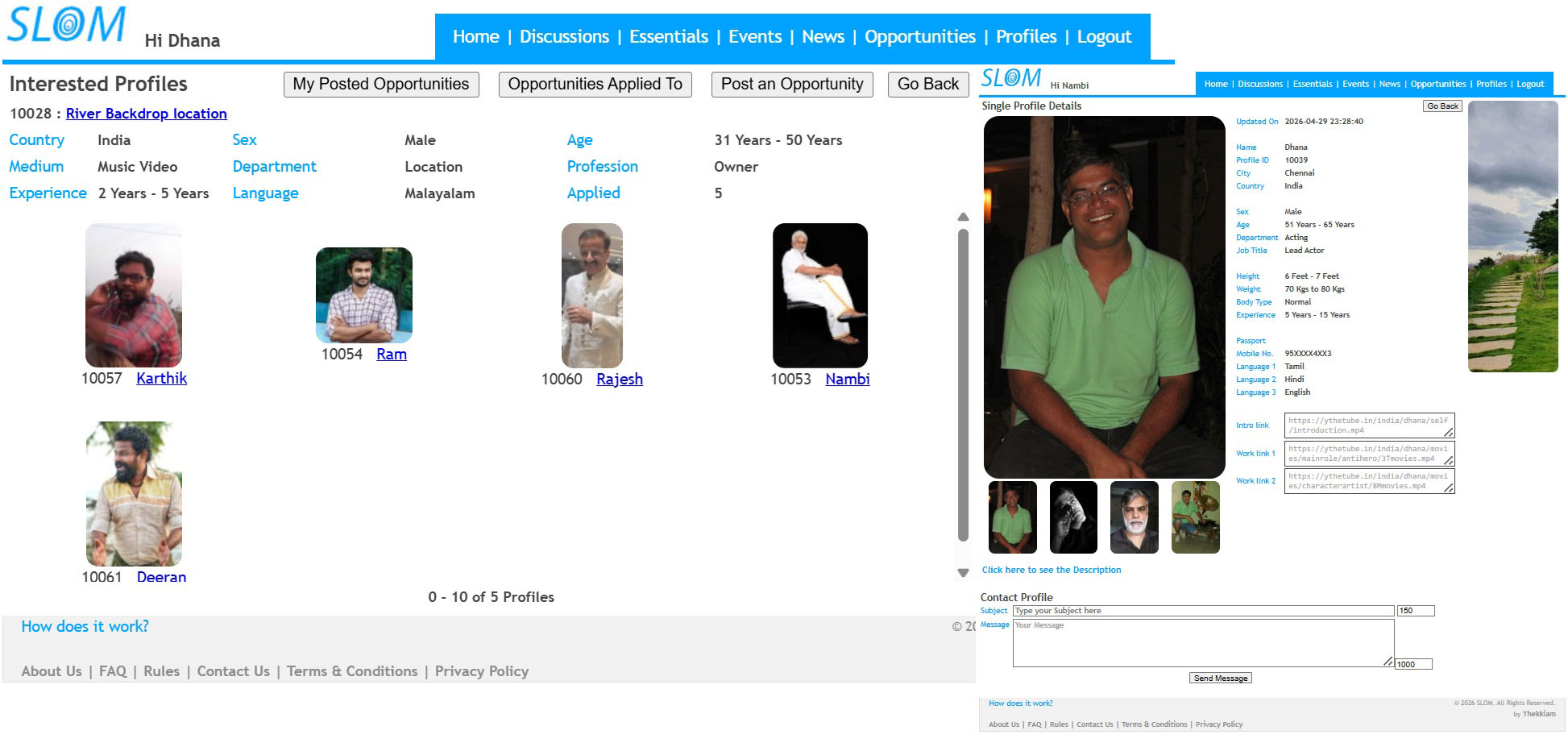
1. OnClick of the INTERESTED PROFILES number (as a link) along respective OPPORTUNITY detail under MY POSTED OPPORTUNITY will show the list of INTERESTED PROFILES
2. INTERESTED PROFILES shows as a thumbnail along with their Profile number and name as a link that will lead to the respective PROFILE DETAILS page
3. Below the Interested PROFILE'S DETAILS, you can find a CONTACT PROFILE column with which you can send personal information to the PROFILE
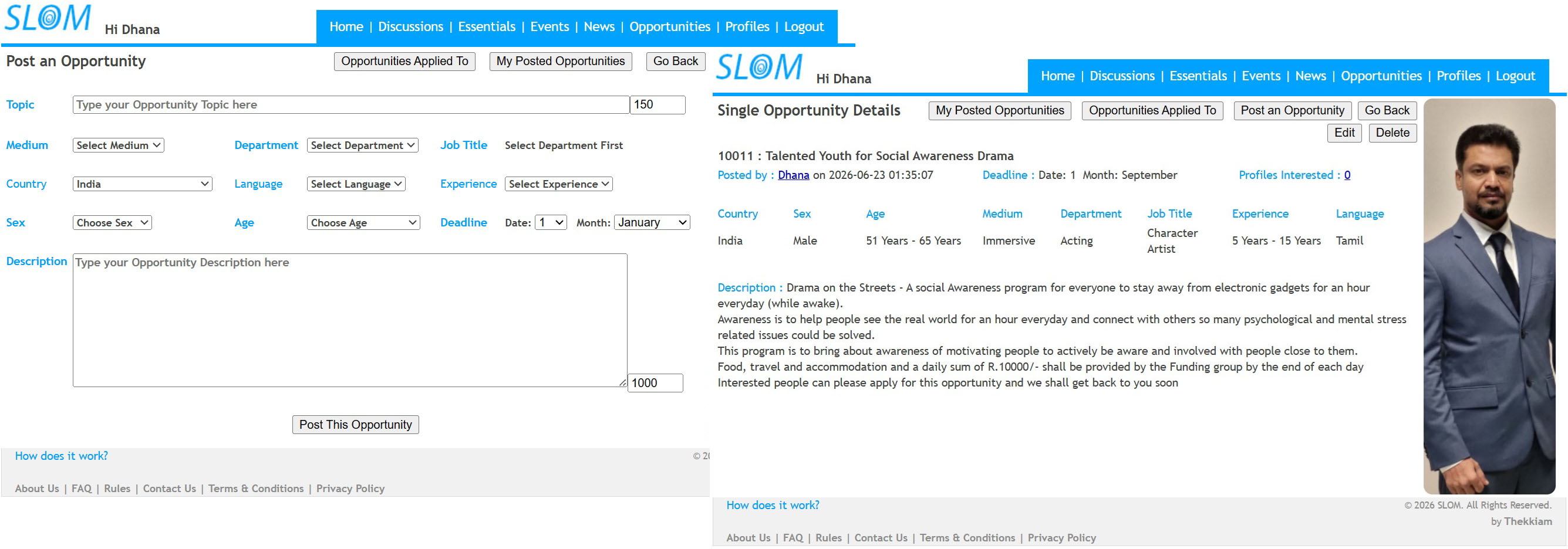
1. Only the one who started the OPPORTUNITY can EDIT or DELETE the respective OPPORTUNITY detail
2. In any manner if the OPPORTUNITY content affects the sentiment of any other Registered Member of www.slom.in , they can click on the REPORT ABUSE button on top of the respective SINGLE OPPORTUNITY DETAIL page and submit their reason for content dislike
------------------------------------------
Profile <-- Click here to see PROFILE information
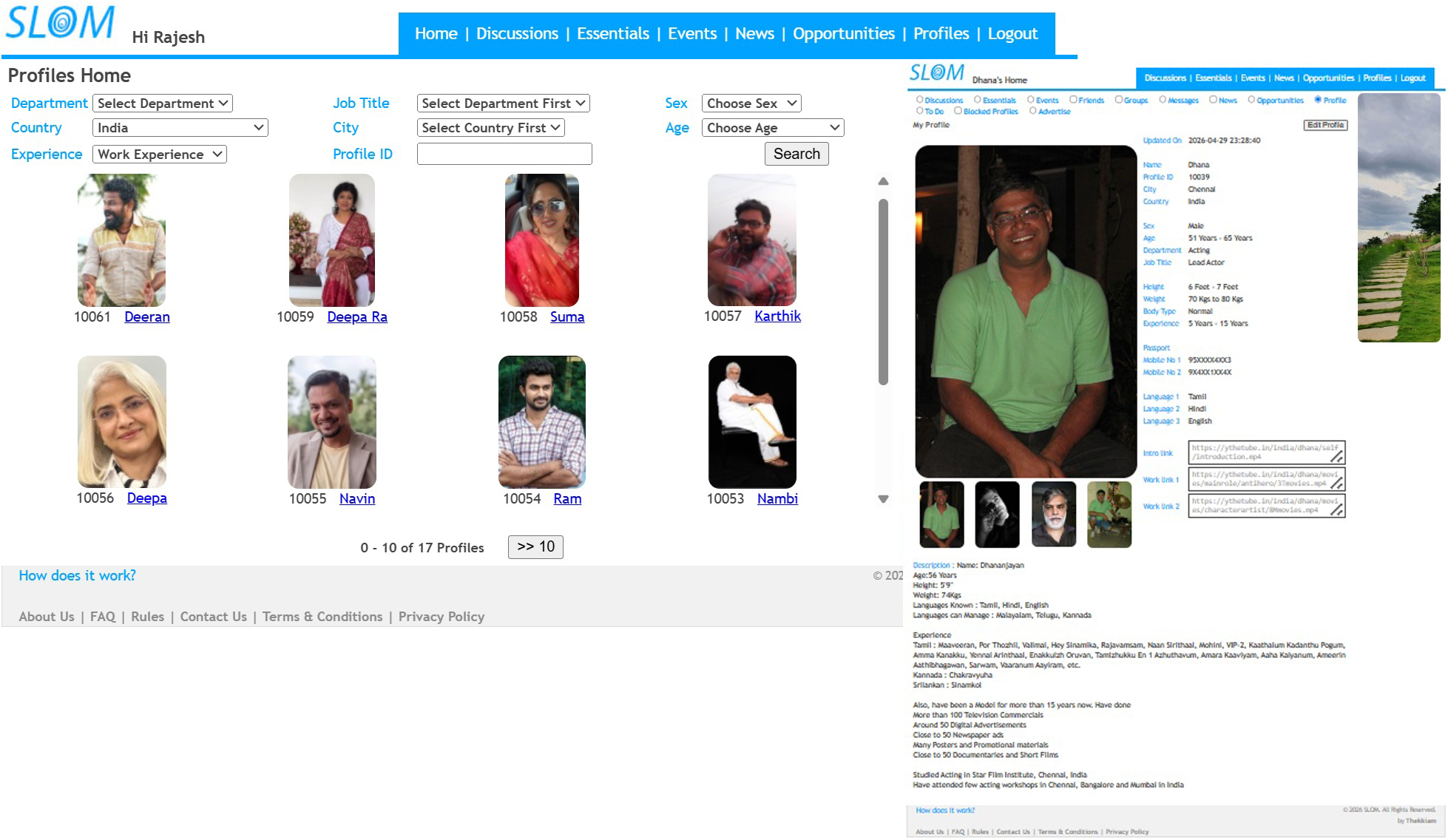
Profile 1
1. On Cicking the Profile button on the top of the page, you can see a thumbnails of the people who have registered with us, as a link. OnClick on the Picture or Name against their Profile number will lead to their respective PROFILE DETAILS
2. You can use the SEARCH options on top of this page to find Profiles as per your profile parameter SEARCH
------------------------------------------
To Do <-- Click here to see TO DO information
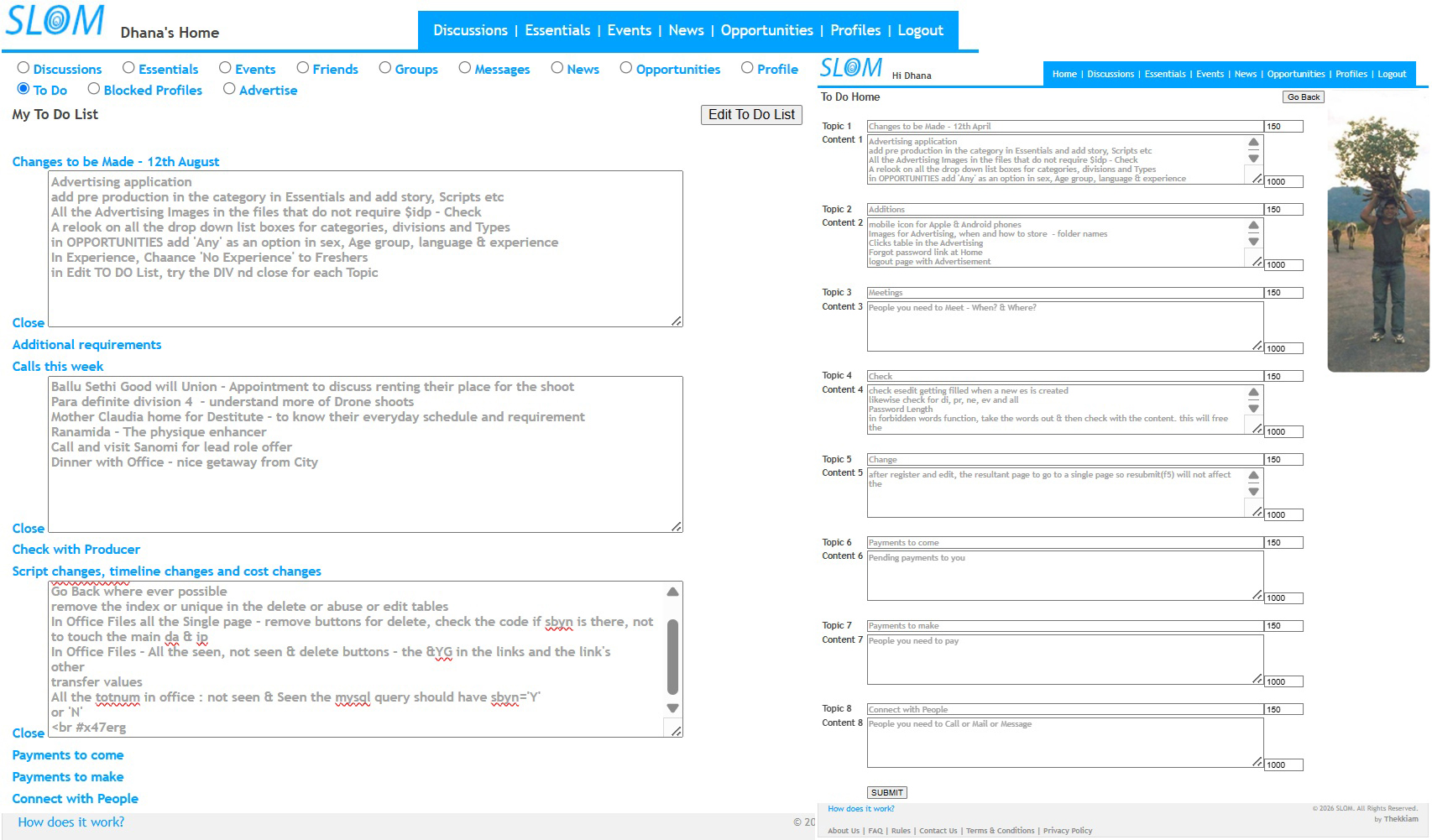
1. You can see your TO DO content in your HOME PAGE under TO DO option
2. you can EDIT / UPDATE your TO DO information under various heads as reminders for your every day activities
------------------------------------------
Blocked Profiles <-- Click here to see BLOCKED PROFILES information
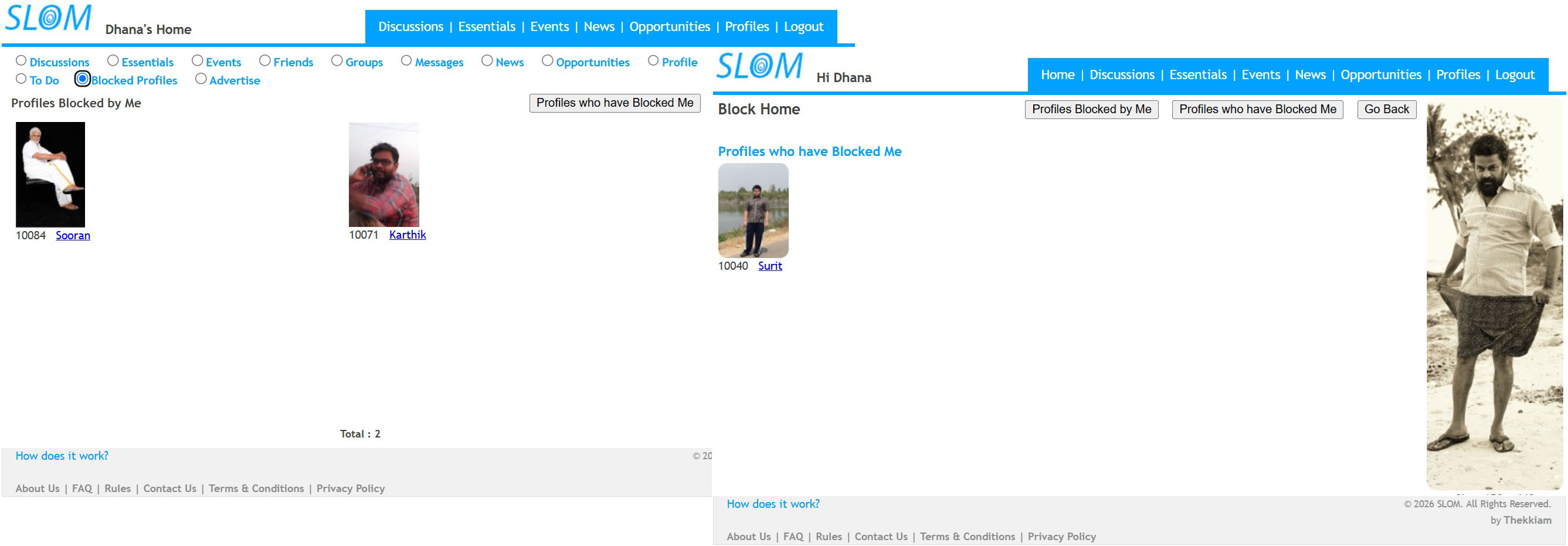
1. You can see your list of BLOCKED PROFILES in your HOME PAGE in BLOCKED PROFILES option under PROFILES BLOCKED BY ME
2. You can also see the list of people who have blocked you by clicking PROFILES WHO HAVE BLOCKED ME button in your HOME PAGE in BLOCKED PROFILES option
3. To UNBLOCK the PROFILES you have BLOCKED, Click on the PROFILE you have BLOCKED from PROFILES BLOCKED BY ME page and click on the UNBLOCK THIS PROFILE button in the page above their PROFILE information
------------------------------------------
Advertise <-- Click here to see ADVERTISE information
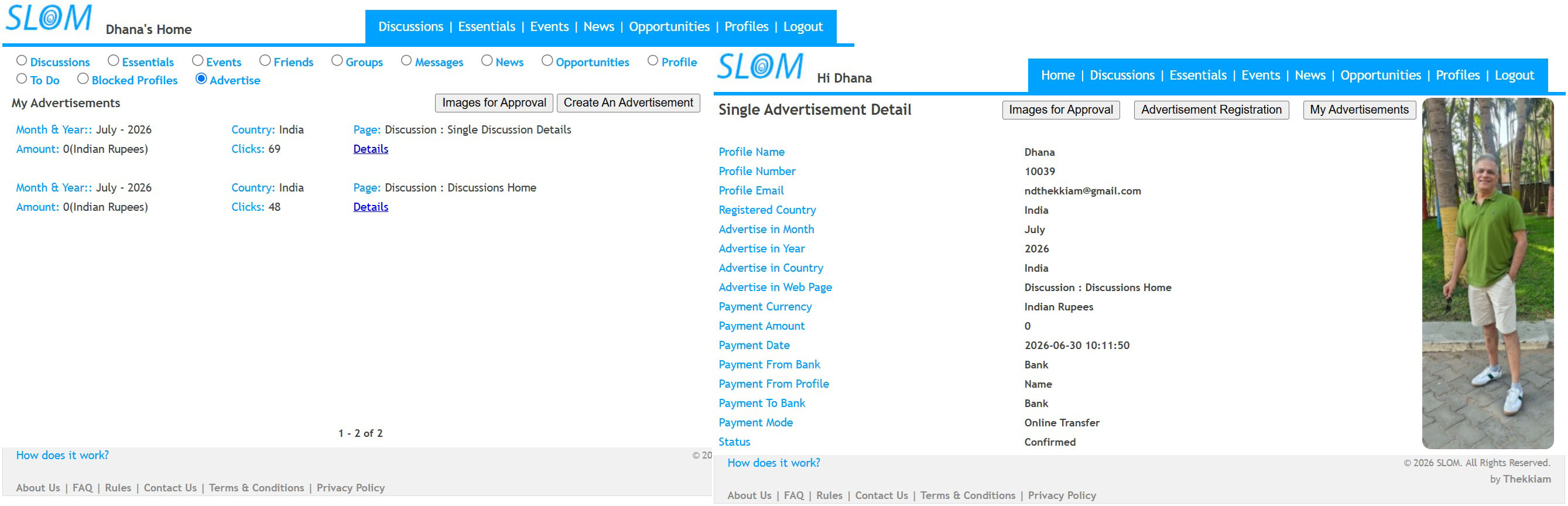
1. You can see your list of your Advertisements in your HOME PAGE in ADVERTISE option under MY ADVERTISEMENTS
2. Click the DETAILS (Link) against each of the ADVERTISEMENTS in your MY ADVERTISEMENTS list to see the full details of that respective ADVERTISEMENT
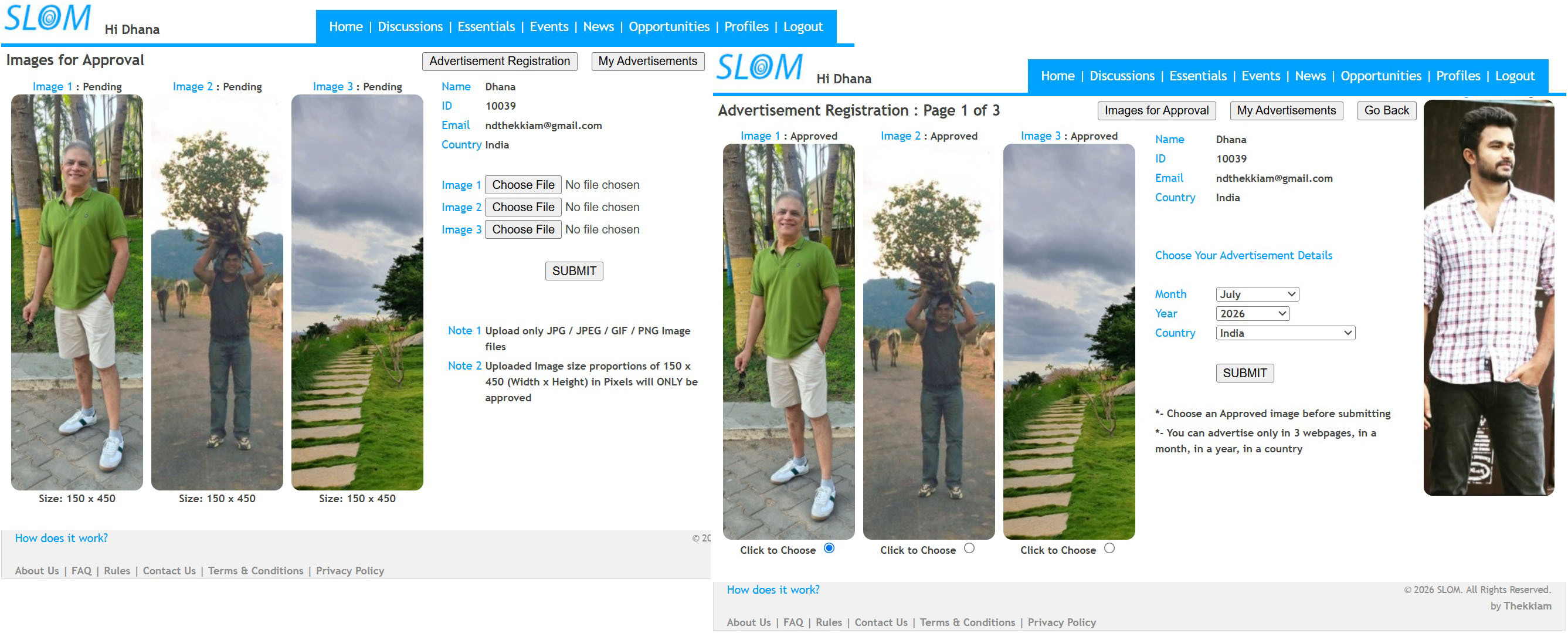
1. To ADVERTISE in www.slom.in one needs to upload their ADVERTISEMENT images in IMAGES FOR APPROVAL for Approval from www.slom.in. IMAGE APPROVAL (discretion of www.slom.in) could take a minimum of 24 hours from the time of IMAGE upload
2. Click on ADVERTISEMENT REGISTRATION and you can see the ADVERTISEMENT IMAGES you had uploaded for Approval and their Approval status on top of each of these images under ADVERTISEMENT REGISTRATION : PAGE 1 OF 3.
3. Choose any of the Approved images under ADVERTISEMENT REGISTRATION : PAGE 1 OF 3 and fill in other required information in the page before submitting. Successful SUBMITtion will lead to ADVERTISEMENT REGISTRATION : PAGE 2 OF 3
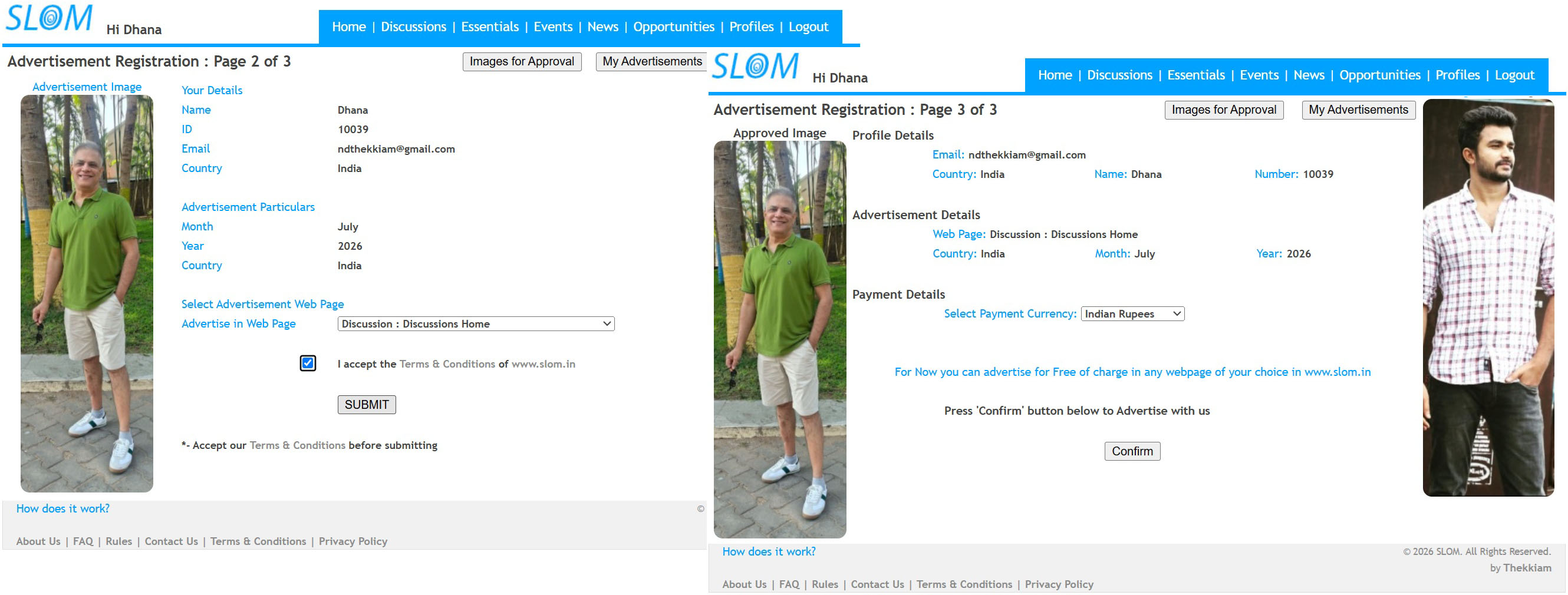
1. ADVERTISEMENT REGISTRATION : PAGE 2 OF 3 will show the Advertisement Details entered thus far and a list of web pages in www.slom.in to choose from. Successful SUBMITtion of this page will lead to ADVERTISEMENT REGISTRATION : PAGE 3 OF 3
2. ADVERTISEMENT REGISTRATION : PAGE 3 OF 3 will show the Advertisement Details entered thus far. This Page will also show the Amount one needs to pay for their Advertisement to be displayed on their page chosen and a Payment Portal to pay the same to www.slom.in. Successful payment of the amount shall give you all your Advertisement details you have entered. Successful Payment shall ensure that your Advertisement shall be displayed during your chosen time span in the chosen page in www.slom.in. FOR NOW IT IS ABSOLUTELY FREE FOR ANY USER, REGISTERED WITH US, TO ADVERTISE IN WWW.SLOM.IN
------------------------------------------
© 2026 SLOM. All Rights Reserved.
by Thekkiam
About Us | FAQ | Rules | Contact Us | Terms & Conditions | Privacy Policy